2010年10月30日星期六

Security Concerns Over China Stretch to ZTE

U.S. security concerns about Chinese telecommunications suppliers don’t stop with Huawei Technologies Co., which has so far taken much of the heat.

Some U.S. officials have accused smaller peer ZTE Corp. of being a potential security threat as well. Four lawmakers sent a letter Oct. 19 urging the Federal Communications Commission to take a closer look at ZTE and Huawei, and to consider restrictions that would make it harder for them to do business in the U.S.

ZTE, hardly a household name, is now the world’s sixth-largest seller of telecom gear, according to research firm IDC, and a frequent bidder for U.S. telecom work. It was founded in 1985 by a group of Chinese state-owned companies, which still hold a 17 percent ownership stake. But executives from ZTE’s U.S. arm say their company isn’t a security threat, and they are taking a series of measures designed to allay the fears of U.S. officials.

ZTE executives say they plan to set up a U.S. manufacturing facility within the next year or two, let third parties audit the company’s hardware and software, and are willing to share the company’s software code with U.S. officials. ZTE said Friday it has taken an initial step toward receiving the validation required for federal civilian agencies seeking to use the company’s technology.

Read the rest of this post on the original site

2010年10月28日星期四

Spotify’s Real News: No News! But Big Bags of Cash Might Help

Nope. Apple’s not buying Spotify.

Now, on to real news: There is no official news about the streaming music service’s attempt to land on U.S. shores. Spotify has yet to land a single U.S. label deal, even though it continues to insist that it will get things settled in time for a 2010 launch.

But the company has made progress with the labels in recent weeks, according to multiple sources. That’s in part because it is now willing to hand over real money, either in the form of advances or as guarantees spread throughout the life of a multiple-year contract.

How much money? Depends on who you talk to: One source thinks Spotify is now offering “tens of millions” to the labels to get a U.S. deal done; another person familiar with negotiations thinks Spotify will eventually end up spending $100 million to get the big four labels–or at least three of them–in line for a launch.

But money alone won’t get Spotify into the U.S. Or put another way: The amount of money will depend in part on the real sticking point in the negotiations–the amount of free music that Spotify users can listen to before they need to become paying subscribers.

In Europe, where Spotify has been a very big success, listeners can stream an unlimited amount of music, on demand, without ever paying a cent. But in the U.S., rival streaming services like Rhapsody, MOG and Napster generally only offer a very brief trial period of a few days before requiring that a pay wall go up.

For the past two years, Spotify has insisted that free, unlimited streaming is the only way the service will work, because that’s Spotify’s most effective marketing technique. Subscribers who do pay up get benefits like ad-free music, and the ability to port their songs to mobile devices like iPhones.

But the labels, most notably Warner Music Group, have insisted that unlimited free streams only serve to strip away their product’s remaining value–if you can listen for free on Spotify, why would you ever buy another CD or iTunes single?

“[Spotify executives] are perennially underestimating label resistance to the free stuff,” says an industry source familiar with the discussions. “And it seems the checks are either not big enough or the labels really won’t give on free.”

Until that gap gets solved–either via compromise or cash–Spotify can’t come to the U.S.

The company had recently been discussing a mid-November launch date, but unless things move quickly, that can’t happen. And even people who are optimistic about the company’s chances concede it may not get it done in time for a pre-Christmas launch, which would force things back to 2011. Spotify declined to comment.

Among the four labels, Sony appears closest to a deal, sources say–a pact is “essentially signable,” according to one source, though another insists there is nothing “executable.” Sony declined to comment. In order to launch, though, Spotify will also need Universal Music Group, the world’s biggest music company, and either Warner or EMI Music Group.

2010年10月26日星期二

How to download free youtube, yahoo, google, stream video for free

This step-by-step guide will show you how to download video from YouTube, Google Video, Yahoo and other video download website. Videos come from those websites are streaming videos. You need special software to capture steaming videos. Today we take YouTube video for example, write a guide about how to download streaming video to computer for free. This guide provides two methods:
1. with free online flv converter;
2. with firefox
This guide is also fit for other video websites as follow video list:
http://www.aiseesoft.com/article/free-download-video-list.html
3. How to transfer the downloaded youtube video to iPod PSP Zune iPhone Cell Phone and other MP3/MP4 player?

1. With free online flv converter
Step1. Open this website: http://vixy.net/. It's a free online FLV converter.
Step2. Then go to YouTube http://www.youtube.com and find a video that you love. Copy the URL that in the Red box. Like this format: http://www.youtube.com/watch?v=sdUUx5FdySs

free download youtube guide - download youtube to iPod, youtube downloader, convert youtube to zune

Step3. Paste your video file URL to the input box (figure as follow), choose the right format you want. If you want to edit the video, AVI is a good choice. And MP4 is fit for iPod, PSP, Zune, Apple TV and other MP4 players. This online converter also can rip audio to MP3. Then wait for the conversion.

free download youtube guide - download youtube to iPod, youtube downloader, convert youtube to zune

Step4. When the conversion finished, we got the download link of the output video. Click the download link to download the video and save in your computer (remember where you save it in). Done.

free download youtube guide - download youtube to iPod, youtube downloader, convert youtube to zune

2. With Firefox
If you have Firefox browser, you can follow these steps.
Step1. Install the videodownloader extension. This is a free plug-in for Firefox. It enables you capture streaming video from website. Here is the Download link:
https://addons.mozilla.org/firefox/2390
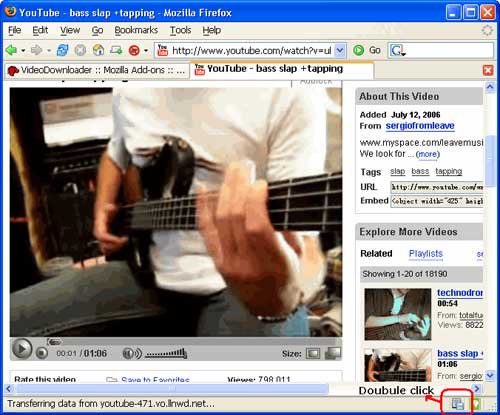
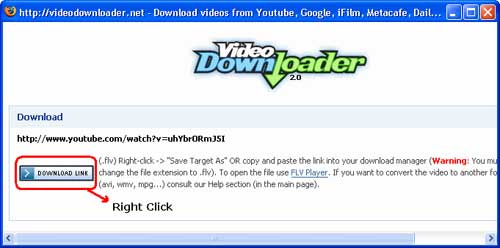
Step2. After installing videodownloader, restart Firefox. In the bottom right, you'll see a little box. Go to the video you want to download, double click that little box, and select download link. Then you could download the streaming video you want. (Note, you have to rename the file extension from “html” to “flv”)

free download youtube guide - download youtube to iPod, youtube downloader, convert youtube to zune

free download youtube guide - download youtube to iPod, youtube downloader, convert youtube to zune

You have to rename the file extension from “html” to “flv” when you save the link. (Make sure your compute is show file extension)

free download youtube guide - download youtube to iPod, youtube downloader, convert youtube to zune

3. How to transfer youtube video to iPod PSP Zune Phone and other MP3/MP4 player?
For iPod: if your download youtube video already is MP4 video, drag it to your iTunes library (or click iTunes "file" -> "add files to library"), plug in your iPod to computer, and then select your iPod device on the left panel of iTunes, click "Movies" tab, check the videos you want to sync and click "Apply", done.
If your downloaded YouTube video is not MP4 video, you have to convert it to iPod format at first, take a look at this free iPod converter, it embeds an iPod manager that can convert and transfer YouTube video to iPod directly without iTunes, here is a step by step guide about it:
http://www.aiseesoft.com/article/ipod-movie-converter.html
For PSP: PSP is the same as iPod, they are both support MP4 video, if you have converted the YouTube video to MP4 with above method, you can copy the MP4 video directly to the "Video" folder in your memory stick (if there is no "Video" folder in your memory stick, you can create by yourself). If your downloaded YouTube video is not MP4 video, you have to convert it to PSP format at first, take a look at this PSP Movie converter, it t can convert and transfer YouTube video to psp directly, fully support all firmware version of PSP, here is a step by step guide about it:
http://www.aiseesoft.com/article/psp-movie-converter.html
For Zune: Zune can play WMV video, if you have converted your download YouTube video to zune format, then open the Zune software, drag the wmv video to your Zune software, plug in your Zune to computer, and then Zune software should detect your Zune automatically, then click "Start to sync", the video will be transfered to Zune player.
If your downloaded YouTube video is not WMV video, you have to convert it to Zune format, take a look at this free Zune converter, it can convert video to Zune format, it can also convert YouTube video to MP3 for other player, here is a step by step guide about it:
http://www.aiseesoft.com/article/zune-movie-converter.html
For cell phone: Cell phone accepts 3GP video and MP4 video, just convert your downloaded YouTube video to the proper format, connect your cell phone to computer, and then copy the videos to your cell phone memory card. If you don't know how to convert video, take a look at this step by step guide:
http://www.aiseesoft.com/article/total-video-converter.html

2010年10月24日星期日

How to sync and put cusomized ringtone on iPhone

Previous part: How to convert DVD, Movie, Music to iPhone ringtone and put ringtone on iPhone/iPhone 3G?

There are also some other ways to convert audio to iPhone ringtone and sync it to iPhone with iTunes, but I think these are a little complicated and users may be at a loss with such ways.

Here I recommend iPhone PC Suite, an almighty iPhone manager that can let you manage phone book, software, media and other files between iPhone and computer without iTunes easily.

But before using this tool, make sure your iTunes installed and has been connected with iPhone once before (Then you will never need not run iTunes when you use iPhone PC Suite to manage your iPhone).And when the first time you connecting iPhone, it will install PhoneDaemon on your iPhone, don’t worry it is green software and will do nothing harm.

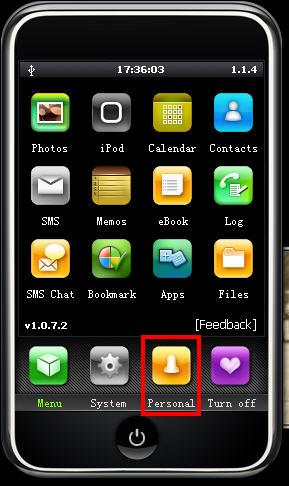
Now I will show you how to sync the converted iPhone ringtone to iPhone without iTunes. Connect you iPhone to computer, double click” iPhone PC Suite” to start iPhone PC Suite, the program will scan you iPhone automatically for a short while. Then click button “Personal” on the main menu, select ”ringtone”.

put ringtong on iPhone

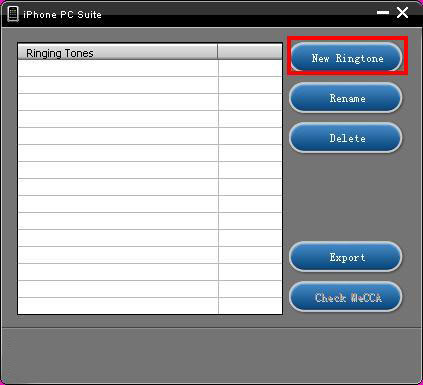
Click “New Ringtone” to locate the converted iPhone ringtone.put ringtong on iPhone

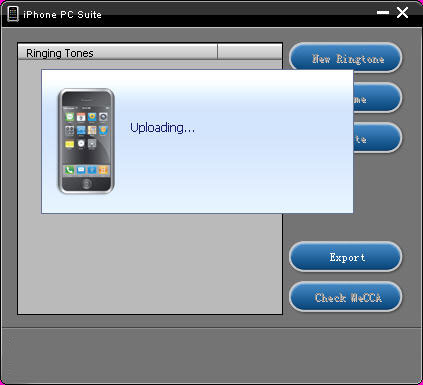
Select your target iPhone ringtone, then it will upload the ringtone to iPhone automatically.

put ringtong on iPhone - ringtong loading

Then you can select your favorite audio file and set it as your iPhone ringtone on iPhone. Click “setting”->”Sound”->”Ringtone”, the converted ringtone is listed on column “Customize”. Now you can enjoy the fun of your unique iPhone ringtone!
This free iPhone PC Suite also has other powerful functions, we will share them later.

Previous part: How to convert DVD, Movie, Music to iPhone ringtone and put ringtone on iPhone?

2010年10月22日星期五

How to use Mac The Ripper to rip DVD to iPod, iPhone, etc. on Mac

Part 1. Use MacTheRipper to minus the copy protections for free
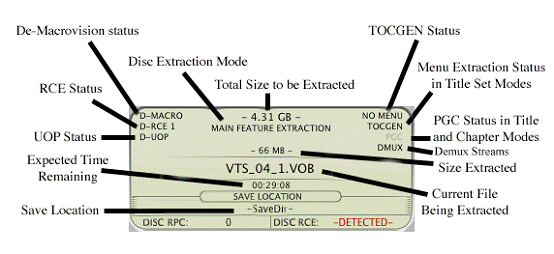
Mac The Ripper is a free DVD ripper (extractor) for Mac OS X. It can extract commercial DVD movies to your hard drive, minus all the copy protections and region controls put in place by DVD publishers. Mac The Ripper removes CSS encryption, Macrovision protection, and sets the disc's region code to '0' for region-free by default, and is capable of removing RCE region protection as well, making an unrestricted copy of any DVD movie you own. It doesn't rely on the DVD drive to get the CSS decryption keys, so that means that you do not need to play the DVD with DVD Player in order to rip it to your hard drive unprotected. MacThe Ripper is also capable of removing UOPs, or User Operation Prohibitions, which are the settings that prevent you from skipping or fast-forwarding certain parts of DVDs, such as FBI warnings, previews, logos, intros, etc. Mac The Ripper is also able to extract discs with the new ARccOS protection, as well as DVDs that have been damaged or improperly mastered.
WARNING: Disabling UOPs can break the navigation on certain DVDs. If you disable UOPs, be sure to verify the DVD with DVD Player before you burn it to DVD±R disc.

Step 1. install MacThe Ripper
Download it from: http://www.Mactheripper.org. To install Mac The Ripper, simply mount the .dmg archive by double-clicking it, and copy the Mac The Ripper application from it to your Applications folder (or wherever you want it ), along with this Mac The Ripper Manual if you need it.
Step 2. convert DVD for free
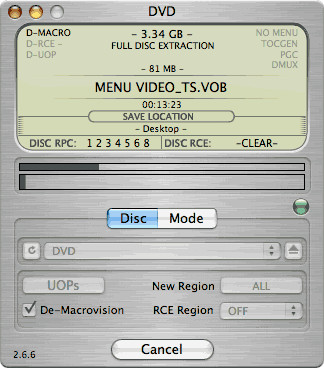
To use Mac The Ripper, you should insert your DVD movie into your DVD drive and launch the Mac The Ripper application. Then, you should set the RCE options if applicable. If Mac The Ripper displays 'DISC RCE: -CLEAR-' after scanning the DVD in the drive, you can leave the 'RCE Region' popup menu on 'OFF', as it is by default. Only (and always) set the 'RCE Region' to 'OFF' when it says that RCE is '-CLEAR-'.
Once you've selected the type of extraction and options you want, you can go back to the 'Disc' tab and click the 'GO!' button (or hit the 'Enter' or 'Return' key) to start the extraction.

Mac The Ripper
Mac The Ripper - dvd extraction

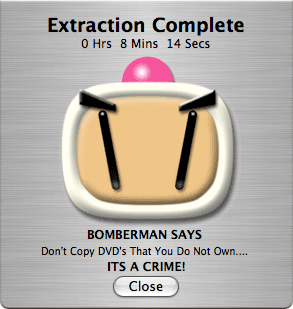
Step 3, finish extract movie from DVD.

Mac The Ripper - extract movie from DVD

You can find a folder in the save location. The output files extracted by MacTheRipper are saved as .VOB format .
Tip: RCE region protection
region 1: North America; U.S. territories; Bermuda
region 2: Europe; Western Asia; Kingdom of the Netherlands; Egypt, Japan, Lesotho, South Africa, Swaziland; British overseas territories, French overseas territories; Greenland.
region 3: East and Southeast Asia
region 4: Oceania; Central and South America; Caribbean; Mexico
region 5: Africa, Central and South Asia, Belarus, India, Mongolia, North Korea, Russia, Ukraine
region 6: Mainland China

Part 2. Convert the .VOB files to other video, audio formats compatible with iPod, PSP
After using Mac The Ripper to minus the copy protections, we can use Aiseesoft Video Converter for Mac to convert .VOB files to formats that compatible with popular players such as iPod, iPhone(iPhone 3G), Apple TV, PSP, Zune, etc.
Step 1:
Download and install Aiseesoft Video Converter for Mac
Note: If you just want to convert .vob file for iPod, You can choose this powerful iPod video converter for Mac. It can convert .VOB file to iPod video and iPod audio on Mac OS with powerful functions and fast converting speed!
Step 2:
Run Aiseesoft Video Converter for Mac, click 'Add File' button to import the .VOB files, choose the output format, then click 'Start' to start the conversion. If you want to put the video on PowerPoint, you can choose .avi as output format.
Tip: Aiseesoft DVD Ripper for Mac can rip DVD to all popular video and audio formats directly. It can rip DVD to videos including MP4, AVI, MOV, M4V, 3GP, MPG, MPEG, FLV, etc and can convert DVD audio to MP3, M4A, AAC, AC3, etc. It is more easy to use than Mac the ripper. You can download it for free and have a try.
Step 3:
After the conversion is finished, You can transfer the converted files to the players. For example, use iTunes to transfer the mp4 video to your iPod, here are the steps:
1. Open iTunes and click "File" to add your converted videos to iTunes library.
2. Plug in your iPod to computer, then iTunes will detect your iPod as a device.
3. Select your iPod device on the left panel of iTunes, click "Movies" tab, check the videos you want to sync and click "Apply", done.
Recommend: DVD Converter Suite for Mac: all-in-one solution to convert DVD and Video to MP4, AVI, FLV, MOV, MKV, ASF, directly for your iPhone, iPod, PSP, iPod touch, Zune, etc. on Mac OS X.

2010年10月20日星期三

Apple Beats Earnings Estimates, but Low on Guidance, iPad Sales

First hit from Apple earnings: EPS of $4.64 and revenues of $20.34 billion. The consensus was $4.05 and $18.8 billion.

The Street won’t like guidance, though: Apple is predicting Q1 EPS of $4.80, below the $5.04 analysts were looking for. They will also sputter a bit on this number: Apple sold 4.19 million iPads, and the consensus was 4.7 million.

And then on the other hand, Apple sold 14.1 million iPhones last quarter, well above both the official 11 million consensus and the 13 million “what we’re really looking for” number.

Ominous/hopeful Steve Jobs quote: “We still have a few surprises left for the remainder of this calendar year.”

UPDATE: Live earnings call coverage here.

Other numbers you care about:

Macs sold: 3.89 million.

iPods sold: 9.05 million.

Press release text:

Apple Reports Fourth Quarter Results
Record Mac, iPhone and iPad Sales
Highest Revenue and Earnings Ever

CUPERTINO, California—October 18, 2010—Apple® today announced financial results for its fiscal 2010 fourth quarter ended September 25, 2010. The Company posted record revenue of $20.34 billion and net quarterly profit of $4.31 billion, or $4.64 per diluted share. These results compare to revenue of $12.21 billion and net quarterly profit of $2.53 billion, or $2.77 per diluted share, in the year-ago quarter. Gross margin was 36.9 percent compared to 41.8 percent in the year-ago quarter. International sales accounted for 57 percent of the quarter’s revenue.
Apple sold 3.89 million Macs during the quarter, a 27 percent unit increase over the year-ago quarter. The Company sold 14.1 million iPhones in the quarter, representing 91 percent unit growth over the year-ago quarter. Apple sold 9.05 million iPods during the quarter, representing an 11 percent unit decline from the year-ago quarter. The Company also sold 4.19 million iPads during the quarter.
“We are blown away to report over $20 billion in revenue and over $4 billion in after-tax earnings—both all-time records for Apple,” said Steve Jobs, Apple’s CEO. “iPhone sales of 14.1 million were up 91 percent year-over-year, handily beating the 12.1 million phones RIM sold in their most recent quarter. We still have a few surprises left for the remainder of this calendar year.”
“We’re thrilled with the performance and strength of our business, generating almost $5.7 billion in cash flow from operations during the quarter,” said Peter Oppenheimer, Apple’s CFO. “Looking ahead to the first fiscal quarter of 2011, we expect revenue of about $23 billion and we expect diluted earnings per share of about $4.80.”

2010年10月18日星期一

A Media Non-Move: ESPN.com Star Bill Simmons Stays Put

Here’s a variation on the “old media star bails for new media outlet” story–a new media big shot staying put at the place that made him famous.

ESPN.com is hanging on to star columnist Bill Simmons, whose contract was set to expire this year. Disney’s sports site has yet to announce the deal, but sources tell me it was finalized more than a month ago–but not as far back as May 15, when Deadspin reported that a deal was essentially done.

How’s that for precision?

In that same vein, you can hear Simmons acknowledge the new deal, tacitly, in his pal Adam Carolla’s podcast today. During the show, taped yesterday, Carolla tells Simmons that “I know you signed a new contract with ESPN,” and then the two go on to talk about future podcast plans, including the potential for video podcasts (this kicks in around the 17:30 mark, if you’ve got the time).

Simmons more or less grew up on the Web, and while Disney’s (DIS) sports unit gives him an opportunity to do things off the Internet, he’s best known for his Sports Guy columns and podcasts on ESPN’s very big site.

Deadspin says Simmons is now working on a “top secret” project for ESPN; rival sports gossip blog The Big Lead says he’ll be building a new standalone site under the ESPN.com umbrella.

No word on length of the new deal, or its value, though I’m hoping it’s for a boatload of money.

That’s what Simmons’s colleague Rick Reilly got when he came aboard from Time Warner’s (TWX) Sports Illustrated back in 2007–a 5-year, $17 million deal, I’m told–and even though Reilly’s deal was done before the economy tanked, it’d be nice to think a Web wonder can command the same kind of cash in 2010.

Even something in the same ballpark would be nice. Right?

ESPN declined to comment; I’m waiting to hear back from Simmons.

2010年10月17日星期日

Apple Solves iPhone 4 Scalping Problem in China

Apple’s figured out a way to beat the iPhone 4 scalpers who have been peddling the devices outside its retail outlets in China to anyone willing to pay a 10-percent mark-up over the sticker price. Potential customers must now reserve their iPhones online, before picking them up at an Apple retail store.

And in order to complete the purchase, they must provide identification — a passport or identity card — that matches that used to make their online reservation. Finally, pre-orders have been limited to one iPhone 4 per day to further discourage scalping.

2010年10月16日星期六

How to get songs, pictures and videos from iTunes, iPod, iPhone to computer and then to Zune

This is a step by step guide to tell you how to get all songs, pictures and videos from iPod, iPhone to computer (including windows PC and Mac OS X) for free. In the event that you accidentally delete your music from your computer, it is possible to recover your songs from your iPod as long as you follow this tutorial. And then you can put these songs, pictures and videos to Zune, PSP, Sandisk, Pocket PC, PowerPoint, Cell phone, Creative Zen, PDA, Archos, iRiver, Apple TV, Xbox 360, PS3 and other MP4 player. If you want to put the iTunes videos to Zune and other mp4 players, You can transfer iTunes videos to iPod touch, iPod classic, the latest iPod nano and iPhone(iPhone 3G) firstly.
This guide includes two parts:
Part 1, How to get songs, pictures and videos from iPod, iPhone to computer for free
Part 2, How to put iTunes videos, iPod and iPhone videos to Zune, PSP and other MP4 player.

Part 1, How to get songs, pictures and videos from iPod, iPhone(3G) to computer for free
1. How to get songs, pictures and videos from iPod, iPhone to Windows PC for free
ml_iPod is a Winamp plugin that enables music to be loaded onto and off of an Apple iPod without using iTunes via Winamp's Media Library. One of the main attractions of the plugin is being able to transfer files from the iPod to your computer which is not possible with Apple's iTunes software. Winamp's newest iPod plug-in can indeed copy files from iPhone in Windows without jailbreaking. It also supports Creative Zen and PlaysForSure certified devices.
Download and install Winamp if you haven't yet. And then use it to get songs, pictures and videos from iPod, iPhone to Windows PC.
2. How to get songs, pictures and videos from iPod, iPhone to Mac OS X for free
Step 1,Download Senuti.
The latest version only works on Mac OS X 10.4 or higher. For OS X 10.3.9 users download Senuti 0.33 from the link at the bottom of the page. It always copy music from regular iPods to your Mac, and a new version now supports the iPhone and iPod touch.
Step 2, Install Senuti. Drag the Seunti application to your Applications Folder. Drag Senuti into your dock or save a copy on your desktop if you wish. Eject the Senuti disk image and clear your download folder.
Step 3, Make sure you have iTunes. Open iTunes.
Step 4, Plug your iPod into your computer. Set your iPod to "Manually manage music and videos" in iTunes.
Step 5, Open Senuti. Songs with a note next to them are already in iTunes. However if you changed song information separately in your iTunes library or your iPod, it will think the same song is two different ones.
Step 6, Go to "Preferences" and then "Copying" in Senuti. Choose the iTunes Music Folder as the "Save Location" for copied music. Otherwise two copies will be created of each song and will fill up hard drive space.
Step 7, Highlight and drag songs from "Library" into "iTunes". You can also drag and drop playlists from your iPod into iTunes. Make sure all the songs look normal and that there are no double copies.

Part 2, How to put iTunes videos, iPod and iPhone videos to Zune
If you want to put iTunes videos to Zune, you can transfer the iTunes videos to iPod or iPhone at first and then get the videos from iPod and iPhone to Computer. Now we can put the videos that have got from iPod touch, iPod Classic, iPod Nano and iPhone to Zune.

Zune only supports the follow video formats:
Windows Media Video (.wmv)
MPEG4 video (m4v, .mp4, or .mov)
H.264 video (.m4v, .mp4, or .mov)

If the videos are the zune format files, you can transfer the videos to Zune using zune software.
Here is the steps:
1. install zune software, you can download it from here for free
2. plug in your zune player to computer
3. drag the wmv video to zune library
4. click "start sync" to sync your zune. OK.
If the videos are not the zune format, You need use Total video converter to convert the videos to Zune format so that you can put the iTunes videos to zune. And then you need to use zune software to transfer the videos to zune.
The total video converter can also convert videos for Apple TV, PSP, Pocket PC, Creative Zen, Archos, and a lot of MP3 players and audio players. So you can also put the iPod videos, iPhone videos and iTune videos to Apple TV, PSP, Pocket PC, Creative Zen, Archos, and a lot of MP3 players.
If you are a Mac user, use this video converter for Mac to put iTunes videos to Zune and other MP4 players.

There as also many other applications and methods for copying music from an iPod to your computer as there are iPod models themselves, which makes finding a sure-fire, free solution a matter of tedious trial and error. Whether you're a Windows user looking to yank tunes from an iPhone, a Mac fan backing up an iPod classic, or a Linux enthusiast trying to get into your new nano, we've got you covered. Follow along for a detailed look at the best ways to transfer songs from your iPod to your computer, no matter what hardware or operating system you're rocking.
1. Floola (Win, Mac, Linux) - portable iPod manager.
Features: (1) move audio and video to/from iPod, (2) manage and import/export playlists, (3) last.fm support, (4) multi-lingual, (5) lyrics and podcasts support, (6) search files, (7) iPod troubleshooting, (8) manage notes, (9) sync files between PC and iPod
2. YamiPod (Win, Mac, Linux) - yet another portable iPod manager.
Features: (1) playlists import/export (PLS,M3U), (2) PC to iPod autosync, (3) built-in music player, (4) last.fm support, (5) search, (6) song list export and more
3. Sharepod (Win) -
Features: (1) move files to/from iPod, (2) built-in music player, (3) search, (4) create winamp-style playlists, (5) network file sharing (office, college, etc.), (6) built-in music player and more
4. Ephpod (Win) - not as flexible as the ones above but has couple of cool
features: ultra-fast song transfer, powerful playlist creation features, one click sync, winamp support, bunch of extras (news, weather, movie listings, etc.)
5. Rockbox - open source replacement firmware for mp3 players.
Features: (1) dynamic playlist creation, (2) multiple themes, (3) gapless playback, (4) in-built clock, (5) tagging, (6) plugins and more
6. Amarok (Linux) - iTunes alternative.
Features: (1) manage, create playlists , (2) podcasts support, (3) last.fm support more
7. Rhythmbox (Linux) - integrated music management application (inspired by iTunes)


2010年10月11日星期一

How to connect your Mac and Xbox 360

If, like me, you have your Xbox 360 placed near your wifi-enabled computer, but away from your wireless router or modem, then you'll want to take advantage of the Xbox's ability to "borrow" your computer's internet connection. For Windows users, this process is simple; it's just a matter of "bridging" your computer's wifi connection to your PC's internet port which is plugged into your Xbox. For Mac users, the process is not so easy. What follows is a guide for getting your Xbox 360 to accept Mac OS X's internet sharing option.
Before you start configuring, open up Terminal (in Applications -> Utilities) and type "ifconfig en0" (zero, not a capital-o). You're looking for the bit that says "inet xxx.xxx.xxx.xxx". In my case, the number I get here is 192.168.2.1 Second, note down the IP address of your wireless router, which in my case is 192.168.0.1

On your Mac
1. Connect your Mac to your wireless internet connection
2. Connect your Xbox 360 to your Mac via Ethernet
3. In System Preferences -> Sharing, enable Internet Sharing between your Airport and Ethernet connection

On your Xbox 360
1. Start up your Xbox and navigate to the Network settings menu
2. Under IP address, enter the number you got from the "ifconfig en0" command earlier on, but with the final number one place higher. In my case, I take the 192.168.2.1, and input 192.168.2.2 in the IP address box on my Xbox 360.
3. Under subnet, input 255.255.255.0
4. Under router/gateway, enter the number you got earlier from the "ifconfig en0" command. In my case, that's "192.168.2.1"
5. Move onto DNS. Enter the IP address of your wireless router (in my case, "192.168.0.1") in both the primary and secondary IP address fields
6. Leave PPPoE and advanced settings blank (i.e. OFF and Automatic)
7. You should now be able to connect to Xbox Live via your internet sharing Mac

This guide shows the connection of Mac and Xbox 360 is not so difficult. You can try it by yourself.

2010年10月10日星期日

How to get songs, pictures and videos from iTunes, iPod, iPhone to computer and then to Zune

This is a step by step guide to tell you how to get all songs, pictures and videos from iPod, iPhone to computer (including windows PC and Mac OS X) for free. In the event that you accidentally delete your music from your computer, it is possible to recover your songs from your iPod as long as you follow this tutorial. And then you can put these songs, pictures and videos to Zune, PSP, Sandisk, Pocket PC, PowerPoint, Cell phone, Creative Zen, PDA, Archos, iRiver, Apple TV, Xbox 360, PS3 and other MP4 player. If you want to put the iTunes videos to Zune and other mp4 players, You can transfer iTunes videos to iPod touch, iPod classic, the latest iPod nano and iPhone(iPhone 3G) firstly.
This guide includes two parts:
Part 1, How to get songs, pictures and videos from iPod, iPhone to computer for free
Part 2, How to put iTunes videos, iPod and iPhone videos to Zune, PSP and other MP4 player.

Part 1, How to get songs, pictures and videos from iPod, iPhone(3G) to computer for free
1. How to get songs, pictures and videos from iPod, iPhone to Windows PC for free
ml_iPod is a Winamp plugin that enables music to be loaded onto and off of an Apple iPod without using iTunes via Winamp's Media Library. One of the main attractions of the plugin is being able to transfer files from the iPod to your computer which is not possible with Apple's iTunes software. Winamp's newest iPod plug-in can indeed copy files from iPhone in Windows without jailbreaking. It also supports Creative Zen and PlaysForSure certified devices.
Download and install Winamp if you haven't yet. And then use it to get songs, pictures and videos from iPod, iPhone to Windows PC.
2. How to get songs, pictures and videos from iPod, iPhone to Mac OS X for free
Step 1,Download Senuti.
The latest version only works on Mac OS X 10.4 or higher. For OS X 10.3.9 users download Senuti 0.33 from the link at the bottom of the page. It always copy music from regular iPods to your Mac, and a new version now supports the iPhone and iPod touch.
Step 2, Install Senuti. Drag the Seunti application to your Applications Folder. Drag Senuti into your dock or save a copy on your desktop if you wish. Eject the Senuti disk image and clear your download folder.
Step 3, Make sure you have iTunes. Open iTunes.
Step 4, Plug your iPod into your computer. Set your iPod to "Manually manage music and videos" in iTunes.
Step 5, Open Senuti. Songs with a note next to them are already in iTunes. However if you changed song information separately in your iTunes library or your iPod, it will think the same song is two different ones.
Step 6, Go to "Preferences" and then "Copying" in Senuti. Choose the iTunes Music Folder as the "Save Location" for copied music. Otherwise two copies will be created of each song and will fill up hard drive space.
Step 7, Highlight and drag songs from "Library" into "iTunes". You can also drag and drop playlists from your iPod into iTunes. Make sure all the songs look normal and that there are no double copies.

Part 2, How to put iTunes videos, iPod and iPhone videos to Zune
If you want to put iTunes videos to Zune, you can transfer the iTunes videos to iPod or iPhone at first and then get the videos from iPod and iPhone to Computer. Now we can put the videos that have got from iPod touch, iPod Classic, iPod Nano and iPhone to Zune.

Zune only supports the follow video formats:
Windows Media Video (.wmv)
MPEG4 video (m4v, .mp4, or .mov)
H.264 video (.m4v, .mp4, or .mov)

If the videos are the zune format files, you can transfer the videos to Zune using zune software.
Here is the steps:
1. install zune software, you can download it from here for free
2. plug in your zune player to computer
3. drag the wmv video to zune library
4. click "start sync" to sync your zune. OK.
If the videos are not the zune format, You need use Total video converter to convert the videos to Zune format so that you can put the iTunes videos to zune. And then you need to use zune software to transfer the videos to zune.
The total video converter can also convert videos for Apple TV, PSP, Pocket PC, Creative Zen, Archos, and a lot of MP3 players and audio players. So you can also put the iPod videos, iPhone videos and iTune videos to Apple TV, PSP, Pocket PC, Creative Zen, Archos, and a lot of MP3 players.
If you are a Mac user, use this video converter for Mac to put iTunes videos to Zune and other MP4 players.

There as also many other applications and methods for copying music from an iPod to your computer as there are iPod models themselves, which makes finding a sure-fire, free solution a matter of tedious trial and error. Whether you're a Windows user looking to yank tunes from an iPhone, a Mac fan backing up an iPod classic, or a Linux enthusiast trying to get into your new nano, we've got you covered. Follow along for a detailed look at the best ways to transfer songs from your iPod to your computer, no matter what hardware or operating system you're rocking.
1. Floola (Win, Mac, Linux) - portable iPod manager.
Features: (1) move audio and video to/from iPod, (2) manage and import/export playlists, (3) last.fm support, (4) multi-lingual, (5) lyrics and podcasts support, (6) search files, (7) iPod troubleshooting, (8) manage notes, (9) sync files between PC and iPod
2. YamiPod (Win, Mac, Linux) - yet another portable iPod manager.
Features: (1) playlists import/export (PLS,M3U), (2) PC to iPod autosync, (3) built-in music player, (4) last.fm support, (5) search, (6) song list export and more
3. Sharepod (Win) -
Features: (1) move files to/from iPod, (2) built-in music player, (3) search, (4) create winamp-style playlists, (5) network file sharing (office, college, etc.), (6) built-in music player and more
4. Ephpod (Win) - not as flexible as the ones above but has couple of cool
features: ultra-fast song transfer, powerful playlist creation features, one click sync, winamp support, bunch of extras (news, weather, movie listings, etc.)
5. Rockbox - open source replacement firmware for mp3 players.
Features: (1) dynamic playlist creation, (2) multiple themes, (3) gapless playback, (4) in-built clock, (5) tagging, (6) plugins and more
6. Amarok (Linux) - iTunes alternative.
Features: (1) manage, create playlists , (2) podcasts support, (3) last.fm support more
7. Rhythmbox (Linux) - integrated music management application (inspired by iTunes)

2010年10月9日星期六

What App Makers Say About Nokia’s Store

This week Nokia took to a mobile conference San Francisco to woo U.S. application developers to its Ovi mobile application store. The company has taken some knocks lately for missing out on a smartphone revolution that has catapulted Apple’s (AAPL) iPhone to godlike status in the Western world.

Discussions with developers show that Nokia (NOK) is making some headway in proving its value in a Silicon Valley preoccupied with Steve Jobs and Google (GOOG), but it’s still got a ways to go.

Nokia approached Andy Sheldon, founder and chief executive of San Francisco-based Fizwoz, at a Silicon Valley event in December, after he had showed off his Fizwoz application, a mobile auction application that connects cameraphone users to photo editors who could potentially buy their images. A month earlier, the company had launched a beta version of its application in the Apple App Store.

Mr. Sheldon says Nokia sat down with him and explained its geographical reach, and how it sells more smartphones a day than the competition. Nokia waived its access fees for the Ovi Store and even pointed Fizwoz to freelance developers it could use to develop the application for Nokia.

Read the rest of this post on the original site

2010年10月8日星期五

Daily Beast’s Tina Brown Brags About “Interesting Discussions” With Newsweek

How are things at the Daily Beast, the news + commentary site Tina Brown is running for Barry Diller?

Awesome! So says Tina Brown, in an “interview” her site is running with her today, to mark the Beast’s two-year anniversary: five million uniques, “ahead of projections” on advertising, etc. “A romping, vibrant, 2-year-old animal bursting with rude health.” (No mention of Howard Kurtz, though.)

In fact, it’s doing so great, Brown says, that Diller may end up pawning the thing off to Newsweek and new owner Sidney Harman.

Well, she doesn’t say that exactly. But she does acknowledge, out loud, for the first time, that the two sides are chatting:

We hear something is going on with Newsweek.

How clever of you to notice! Yes, there have been some interesting discussions going on, as we have with potential partners large and small all the time.

Cheeky!

Here’s a more fleshed-out version of that discussion, via the NYT:

Mr. Harman and Ms. Brown met as recently as last week and are keen on working together. But whether The Daily Beast, which is financed by the billionaire investor Barry Diller, and Mr. Harman can reach a deal that is agreeable to all parties is still unknown, this person said, speaking anonymously to reveal privileged information.

Ms. Brown has gone as far as submitting a memorandum to Mr. Harman outlining how she would run Newsweek, but Mr. Harman was also interviewing other people for the job, this person added.

A few things:

  • It’s astonishing, and also true, that Harman bought Newsweek from the Washington Post (WPO) without knowing who he would hire to run the operation.
  • This also means that no one is really running things there now.
  • Brown would be a pretty good choice, all things considered.
  • And picking up the Beast wouldn’t be a terrible idea for Harman, assuming Diller can do it at the right price: Newsweek’s Web operations are okay, but not nearly as good as they look on paper. That’s because the site is largely dependent on MSNBC.com for its traffic, and that’s not a healthy affair. Say what you will about Brown’s start-up, but it hasn’t had the crutch of a big distribution partner.

2010年10月6日星期三

Twitter Replaces CEO Ev Williams With Deputy Dick Costolo

In a move that tech types have been murmuring about for some time, Twitter CEO Ev Williams is stepping down and will be replaced by Dick Costolo, the COO the company brought in last year.

Williams says he will focus on “product strategy,” leaving Costolo to handle the nuts and bolts of the business Williams co-founded four years ago. This makes plenty of sense, because that’s essentially the way the company has been running for some time: Williams spent the past few months consumed with the new Twitter.com redesign, while Costolo has been in charge of everything else.

“I am most satisfied while pushing product direction. Building things is my passion, and I’ve never been more excited or optimistic about what we have to build,” Williams writes in his note announcing the move, and that rings quite true: When I saw him in San Francisco last month, he was positively vibrating with pride over the new Twitter.com launch.

Internally, the team referred to the project as “Phoenix,” and the overdramatic code name gives you a sense of how much importance Williams and others placed on the redesign. It’s the first real product launch Twitter has put out in a long time.

But running Twitter is about a lot more than product now. It’s about scaling a team that’s already grown to 300 people. And it’s about figuring how to generate revenue to pay for all those bodies–and to satisfy investors’ very high expectations.

Outsiders haven’t gotten the sense that Williams has been that interested in that kind of stuff for quite some time, and there have been rumblings that Williams would need to take a different role sooner or later.

When Costolo came in from the outside to handle revenue and other non-product projects last year, this became an easy set of dots to connect.

(Actually, Costolo, who has a sense of humor honed as an improv comic in Chicago, did some of the dot-connecting himself a year ago: “First full day as Twitter COO tomorrow. Task #1: undermine CEO, consolidate power,” he tweeted back in September 2009. Thanks to Matt Barash for reminding us.)

Meanwhile, if you’re betting that Twitter ends up selling to a big guy–Google (GOOG) is really the only logical choice, though you could theoretically see Microsoft (MSFT) entering the fray–today’s move makes that option that much more likely.

Williams has already done the first hard part, by handing his company over to a professional manager. Handing the whole thing over to a new owner is a logical next step.

UPDATE: I ran that theory by Costolo and Williams. They disagree!

“I think it’s the opposite,” says Costolo, who argues that he’s taking over the company so that they can increase their chances of keeping it independent “for a long time.”

And Williams says he really does want to build more stuff, and he sounds convincing saying it.

“I never had any absolute ideas that I was or was not the long-term CEO. My goal has always been to play the role in the company that I thought was most important at the time,” he said.

I still think that role will be “guy who sells his company.” But happy to be wrong…

Here’s the text of Williams’s blog post announcing the change:

By all accounts Twitter is on a roll. We’ve redesigned our web site to great user feedback. Our user and usage numbers are growing at a rapid clip all around the world. We’ve launched an early, but successful, monetization effort. And, many top engineers, product designers, sales people and other key folks have joined our quickly growing team.

In fact, there are 300 people working at Twitter today–compared to about 20 when I took the CEO job two years ago. Back then, people were creating about 1.25 million tweets a day–compared to 90 million today. In those same two years, we grew from 3 million registered users to more than 160 million today.

The challenges of growing an organization so quickly are numerous. Growing big is not success, in itself. Success to us means meeting our potential as a profitable company that can retain its culture and user focus while having a positive impact on the world. This is no small task. I frequently reflect on the type of focus that is required from everyone at Twitter to get us there.

This led to a realization as we launched the new Twitter. I am most satisfied while pushing product direction. Building things is my passion, and I’ve never been more excited or optimistic about what we have to build.

This is why I have decided to ask our COO, Dick Costolo, to become Twitter’s CEO. Starting today, I’ll be completely focused on product strategy.

When I insisted on bringing Dick into the COO role a year ago, I got a lot of questions from my board. But I knew Dick would be a strong compliment to me, and this has proven to be the case. During his year at Twitter, he has been a critical leader in devising and executing our revenue efforts, while simultaneously and effectively making the trains run on time in the office. Dick can be even more effective at this now because Ali Rowghani, Adam Bain, Mike Abbott, Katie Stanton and Kevin Thau joined our leadership team this year and are having a big impact. Given Dick’s track record as a three-time successful CEO, I’m confident we can make this a smooth transition.

I’m extremely proud of how far Twitter has come in the last two years. And, I couldn’t be more excited about where our amazing team will take it next.

2010年10月5日星期二

How to upload videos to YouTube easily and quickly on Mac

Google has released basic software called Vidnik which is the quickest, simplest way to make movies using the built - in camera on your Macintosh and upload those movies to your YouTube account. You must first sign up for a free YouTube membership to upload videos. You can use Vidnik to create a video diary, or just to quickly record a video comment to attach to an existing YouTube video. Vidnik works with the built-in video cameras on recent Macs, with Firewire video cameras, and with many USB video cameras.

Part 1, use Vidnik to Record video segments using your iSight camera and upload them to YouTube.

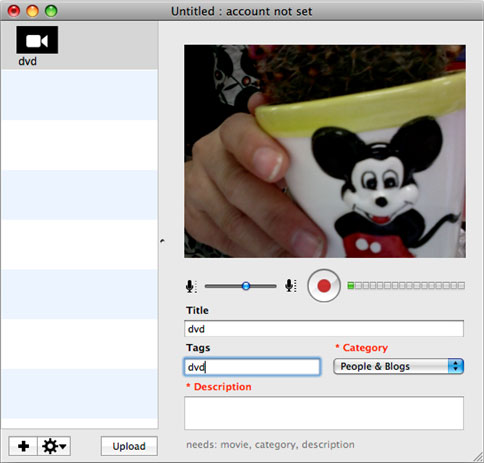
upload video to YouTube

To use Vidnik, run the app, then click the record button to start recording. Click it again to stop. Trim to just the golden moments you want to keep, as in the screen shot above. Fill in the required title, description, and so on. Click the upload button. That's it.

Part 2, Use Vidnik to upload videos to youtube
You can drag movies made in other programs onto Vidnik's column of movies, and then click the upload button. And to use another program to do a little post-production, use the Gear menu to show Vidnik's movie file in the Finder. Edit the movie in the other program, and then upload it.Vidnik can only support videos such as: 3GP, AVI, DAT, MOV, MP4, M4A, WAV, AAC. It does not support ASF, FLV, MPEG, RM, WMV, MP3, AC3.
You can use the video converter for Mac to convert your videos to the formats that Vidnik can run.
If you want to upload DVD to TouTube, you need to use DVD ripper to rip DVD to video formats supported by YouTube first. If you are Mac user, you can use this DVD ripper for Mac .

upload DVD to YouTube

2010年10月4日星期一

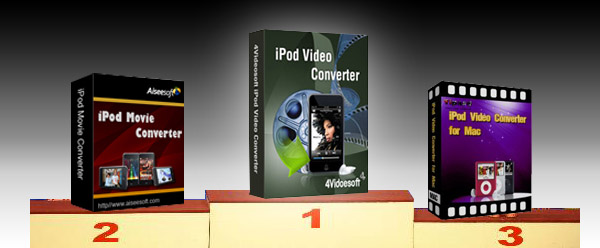
Top 5 Best iPod Video Converter Review

There is hundreds of iPod software available now. After the wide investment, for you to manage your iPod efficiently, we made this iPod Video Converter Review for the best iPod Video Converters. It includes iPod Nano Converter, 3gp converter iPod, etc. So it is also the video converter review.

1. 4Videosoft iPod Video Converter
Free Download  $29.95
This iPod video converter can assist you convert MP4, MPG, MPEG, MOV, M4V, RM, WMV, ASF, MKV, 3GP, MOD, TOD, etc, even the YouTube FLV video to your iPod video or audio supporting formats.
More features:
* So cool and friendly user-interface for you to easily and quickly operate.
* Support all video and audio sources.
* More helpful editing functions for you to create your own video.
* Excellent and timely support email services.
* Free upload for life included.
* Customize output settings.

Any of the five iPod software is good. They all have the excellent features to meet your needs.

2. Aiseesoft iPod Movie Converter
Free Download  $29.00
This iPod software is designed for Windows iPod users. Convert all video and audio formats to iPod MP4, H.264, MP3, AAC, M4A.
More features:
* Easy, simple and quick installation and operation.
* Accept MPG, MPEG, MPEG2, VOB, MP4, M4V, RM, RMVB, WMV, ASF, MKV, TS, MPV, AVI, 3GP, 3G2, FLV, MPV, MOD, TOD.
* High-quality of converted video and audio.
* More editing functions: Trim, Crop, Merge into one file, Take snapshot.
* Free and life-long upgrade.
* 7*24 online email support.

3. Tipard iPod Video Converter
Free Download  $19.00
This is another best iPod Video Converter for Windows user to convert any video and audio sources to iPod MP4, H.264, MP3, AAC, M4A.
More features:
* Fully support Windows NT4/2000/2003/XP and Windows Vista, Windows 7 Hardware.
* Support batch conversion.
* Allow preview during the whole process.
* You decide the video size via adjusting the specific parameters of output file.
* Convert 3GP, FLV to iPod easily.
* The output quality is excellent.
* Life-long upgrade.

Best iPod Video Converter

4. Aiseesoft iPod Video Converter for Mac
Free Download (Intel, Power PC)  $29.00
This iPod software is the best iPod video converter for iPod Mac users to convert any video and audio formats to iPod MP4, H.264, MP3, AAC, M4A.
More features:
* Possessed with friendly user-interface.
* One of the quickest software available.
* Preview available during the whole process.
* Capture any time-length clips from source video.
* Adjust the aspect ratio.
* Pre-set the specific parameters for output format.
* Capture your favorite pictures.
* Supported formats: MPG, MPEG, MPEG2, VOB, MP4, M4V, RM, RMVB, WMV, ASF, MKV, TS, MPV, AVI, 3GP, 3G2, FLV, MPV, MOD, TOD, AAC, AC3, WAV, MID, WMA, M4A, RA, RAM.

5. Tipard iPod Video Converter for Mac
Free Download (Intel, Power PC)  $29.00
This best iPod video converter is another iPod software for iPod Mac users. Convert MPG, MPEG, MPEG2, VOB, MP4, M4V, RM, RMVB, WMV, ASF, MKV, TS, MPV, AVI, 3GP, 3G2, FLV, MPV, MOD, TOD, Youtube to iPod MP4, H.264 video formats and MP3, AAC, M4A audio formats.
System Requirement:
Processor: PowerPC® G4/G5 or Intel® processor
OS Supported: Mac OS X v10.4 - 10.5
Hardware Requirements: 512MB RAM, Super VGA (800×600) resolution, 16-bit graphics card or higher
More features:
* Works with all video sources.
* Has pre-defined settings for you to get the high or standard output quality.
* Create your own customized video under the useful editing functions of trim, crop, join.
* Total preview for the whole process.
* 7*24 email support.

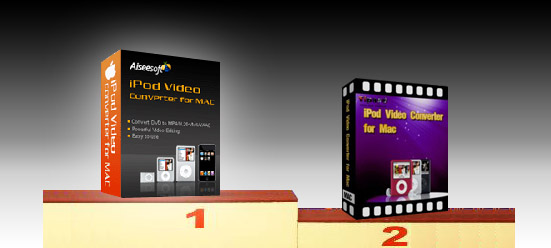
Best iPod Video Converter for Mac

Hope the best iPod Video Converter, iPod Video Converter for Mac software would help you, and make your digital media life colorful.