2010年9月28日星期二

How to connect your Mac and Xbox 360

If, like me, you have your Xbox 360 placed near your wifi-enabled computer, but away from your wireless router or modem, then you'll want to take advantage of the Xbox's ability to "borrow" your computer's internet connection. For Windows users, this process is simple; it's just a matter of "bridging" your computer's wifi connection to your PC's internet port which is plugged into your Xbox. For Mac users, the process is not so easy. What follows is a guide for getting your Xbox 360 to accept Mac OS X's internet sharing option.
Before you start configuring, open up Terminal (in Applications -> Utilities) and type "ifconfig en0" (zero, not a capital-o). You're looking for the bit that says "inet xxx.xxx.xxx.xxx". In my case, the number I get here is 192.168.2.1 Second, note down the IP address of your wireless router, which in my case is 192.168.0.1

On your Mac
1. Connect your Mac to your wireless internet connection
2. Connect your Xbox 360 to your Mac via Ethernet
3. In System Preferences -> Sharing, enable Internet Sharing between your Airport and Ethernet connection

On your Xbox 360
1. Start up your Xbox and navigate to the Network settings menu
2. Under IP address, enter the number you got from the "ifconfig en0" command earlier on, but with the final number one place higher. In my case, I take the 192.168.2.1, and input 192.168.2.2 in the IP address box on my Xbox 360.
3. Under subnet, input 255.255.255.0
4. Under router/gateway, enter the number you got earlier from the "ifconfig en0" command. In my case, that's "192.168.2.1"
5. Move onto DNS. Enter the IP address of your wireless router (in my case, "192.168.0.1") in both the primary and secondary IP address fields
6. Leave PPPoE and advanced settings blank (i.e. OFF and Automatic)
7. You should now be able to connect to Xbox Live via your internet sharing Mac

This guide shows the connection of Mac and Xbox 360 is not so difficult. You can try it by yourself.

2010年9月27日星期一

Managing Children’s Screentime: How Apps Help

Screentime is a big issue in our household.

As an author and research into child development (and despite my geekiness), I am not comfortable with my children having endless access to the increasing number of screens that inhabit the house.

Read the rest of this post on the original site

2010年9月26日星期日

Schmidt: Forcing Carriers To Provide “Clean” Android Would Violate Principle Of Open Source

One of the disturbing things about the Skyhook Wireless lawsuit against Google (GOOG) is the allegation that Google made Motorola drop Skyhook as a location provider, especially when Google CEO Eric Schmidt said last week that such restrictions would be “violating the principle of open source.”

Schmidt’s comment came during a press lunch at the Google Zeitgeist partners conference last week, on September 14, a day before the Skyhook suit made headlines.

Read the rest of this post on the original site

2010年9月25日星期六

Netflix Adds “Saturday Night Live,” “Battlestar Galactica,” More NBC U Shows to Web Service

This could make a Web-only offering from Netflix that much more appealing: The movie service has signed an expanded rights deal with GE’s NBC Universal (GE) unit. The deal gives Netflix (NFLX) Web access to a long list of NBC U shows, from broadcast–every episode of “Saturday Night Live”–to cable–like Syfy’s awesome “Battlestar Galactica.”

The cable shows are particularly noteworthy, since those programs are generally not available on Netflix rival Hulu–which is co-owned by NBC, along with Disney’s (DIS) ABC and News Corp.’s (NWS) Fox.

In fact, while Netflix makes a point of not advertising access to any particular show or movie on its service, it does consistently well with cable programming, at least compared with Hulu. For instance: Episodes of “Dexter,” from CBS’s Showtime pay channel, do particularly well on Netflix–but CBS has no Hulu deal at all.

And it’s also worth noting that, going forward, all new episodes of “Saturday Night Live”–one of Hulu’s best assets–will be available the day after they air. Just like they are on Hulu.

2010年9月23日星期四

How to use Techspansion's open source to build iSquint and VisualHub

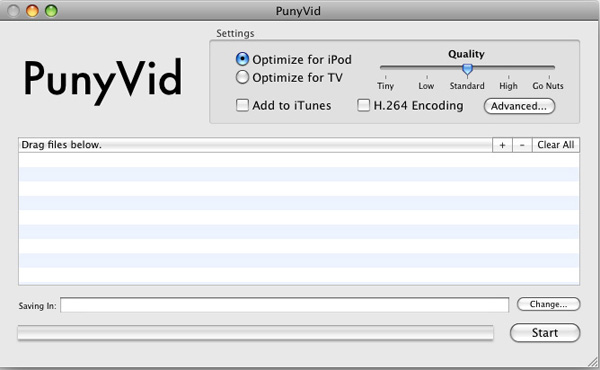
Squint and VisualHub, the popular video converter on Mac OS X have now gone open source. They also have got new names, Film Redux (VisualHub) and PunyVid (iSquint). As you may or may not know, the developer, Techspanion has closed shop
and after an outcry from fans, it has released the source code.
You can get them here: SourceForge.net Repository - [transcoderredux] Index of /
This a tutorial on how to use Techspansion's open source to build iSquint and VisualHub.

Here are two parts:
Part 1, How to use open source to build VisualHub (Film Redux)?
Part 2, How to use open source to build iSquint (PunyVid).

What you need:
Mac OS X 10.5, Xcode 3.0 and Techspansion's open source

Part 1, How to use open source to build VisualHub (Film Redux)?
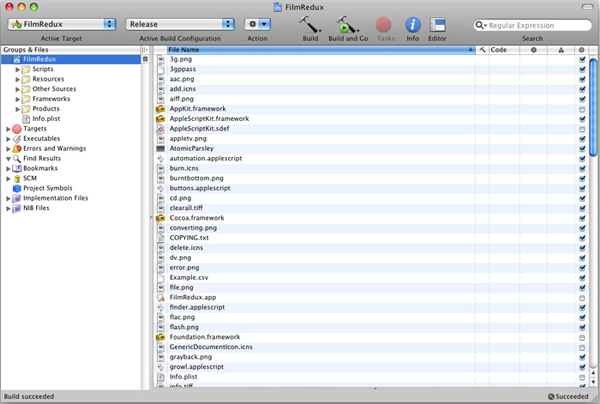
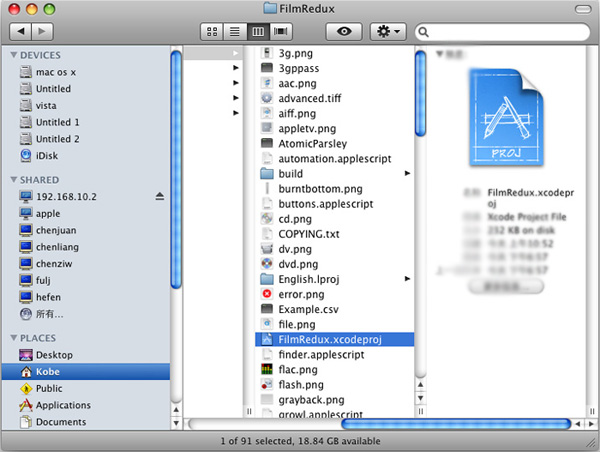
Step 1, Open the open source, you will see two folders: FilmRedux and PunyVid. Open FilmRedux and find the file "FilmRedux.xcodeproj".

FilmRedux and PunyVid

Step 2, Double click "FilmRedux.xcodeproj" to open it with Xcode.

open source

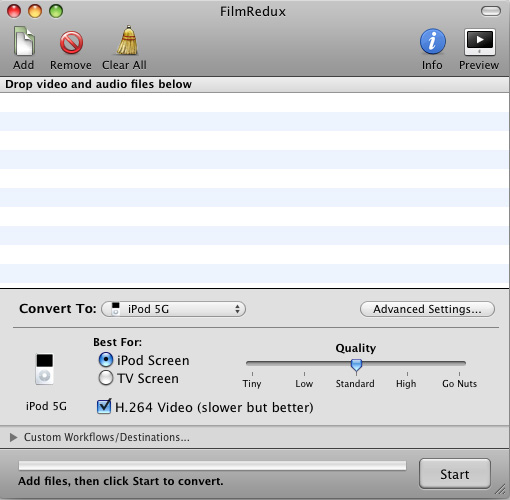
Step 3, Click the button "Build and Go" to build VisualHub (Film Redux). That's all.

build VisualHub

Part 2, How to use open source to build iSquint( PunyVid)?
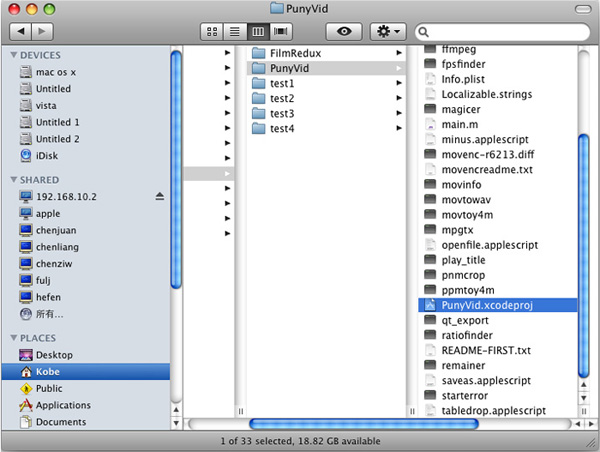
Step 1, Open the open source, you will see two folders: FilmRedux and PunyVid. Open PunyVid and find the file "PunyVid.xcodeproj".

open source

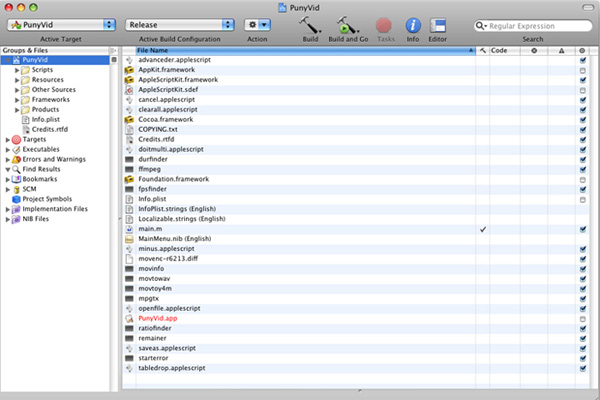
Step 2, Double click "PunyVid.xcodeproj" to open it with Xcode.

open source

Step 3, Click the button "Build and Go" to build iSquint (PunyVid). That's all.

 build iSquint

The operation is simple, but the stability would be a great concern, it kept reporting error messages during my try which is really frustrated. Perhaps it's not wise enough to spend hours coping with those errors messages, as there must be some commercial programs that perform much more reliably, like the Video Converter for Mac.
If you want to convert videos to DVD, here is DVD Creator for Mac.

2010年9月20日星期一

How to make iPhone Ringtones on Mac and Windows for FREE

I have many iPhone Ringtones on my iPhone, and I change them once one day. But I don’t buy them online. I just make iPhone Ringtones myself by Ringtone Maker Shareware. Actually, iPhone Ringtone maker is m4r Ringtone Maker, such as mp3 Ringtone Converter, WMA Ringtone Converter and WAV Ringtone Converter. There are also iPhone Ringtone Converter for Mac or iPhone Ringtone Creator Mac.

Here I will share how to make iPhone ringtones on Windows and Mac.
For Windows:
Firstly, you need download iPhone Ringtone Maker.

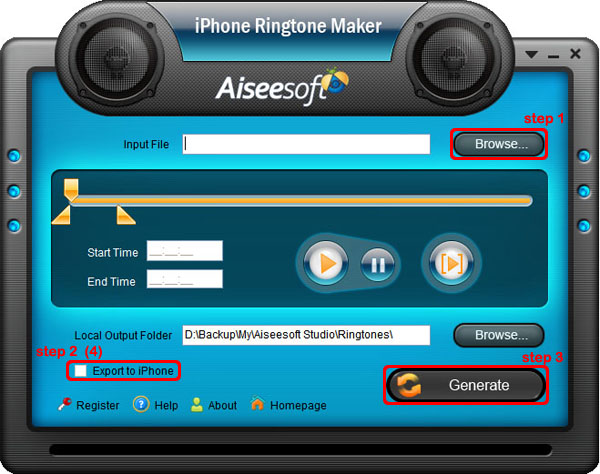
iPhone Ringtone Maker

Step 1: Load Music
Click “Browse” on the right side of “Input File” to find your music that you want to make as your iPhone ringtone and click “Open” to load it into iPhone Ringtone shareware.
Step 2: Choose iPhone Ringtones
1. Drag your “Start Slider” to the beginning of the “Slider Bar” and “End Slider” to the end, then Listen iPhone Ringtone to listen your whole audio file.>br/>2. a. Drag the “Start Slider” to find where is the beginning of your ringtone and Drag “End Slider” to make an End of it.
b. Type the exact “Start Time” and “End Time” in the box to choose your ringtone.
3. ClickPre-listen iPhone Ringtoneto pre-listen your ringtone.
4. If you want to put your ringtone directly on your iPhone, just plug your iPhone to your computer and check “Export to iPhone” (4). If you just want to put it on your computer, click “Browse” on the right of “Local Output Folder” to find a place to put it.
Step 3: Generate iPhone Ringtones After you have done the 3 steps, just click “Generate” to make your iPhone ringtones.

For Mac:
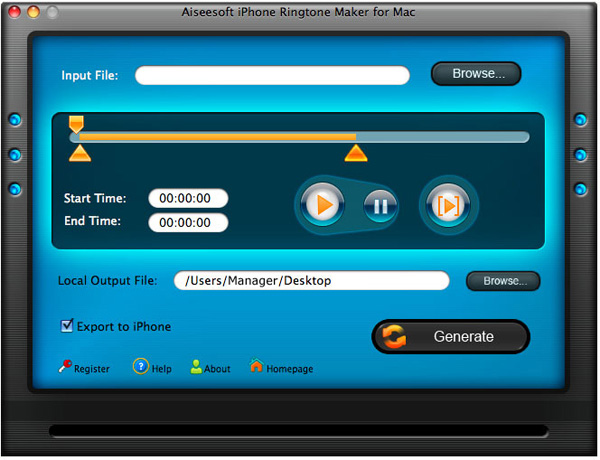
If you are a Mac user, you need to find iPhone Ringtone Converter for Mac or iPhone Ringtone Maker for Mac.
Here I have one for you, just download this iPhone Ringtone Maker for Mac.

iPhone Ringtone Maker for Mac
The process of making your own iPhone ringtone on Mac is the same as on Windows.
Hope you enjoy this DIY process.

2010年9月18日星期六

How to share the iTunes Music and videos between two computers for free

Some people may meet that situation: You and your brother both have iTunes library under the same credit card account. Occasionally, you want to get the same song, however you wouldn't want you both to pay the $0.99 where virtually the same account is purchasing the song twice. So how can you and/or he download the songs from each other once it's purchased on a single computer? This is a guide to tell you how to share iTunes Music and videos between two computers such as sharing iTunes Music and videos between Windows PC and Mac OS X, sharing iTunes Music and videos between Mac OS and Mac OS X and sharing iTunes Music and videos between Windows PC and Windows PC

Step 1, Networking computers.
If you want to share iTunes videos and music between computers, you need to network PC and Mac first.
If you do not know how to Network Windows with Mac OS X, go there:
Networking Windows (2000/XP/2003*) with Mac OS X (10.3/10.4)
Information you will need to know
1.The IP Address of your PC (Start > Run > CMD {return} > "ipconfig" {return})
2The IP Address of your Mac (Applications > Utilities > Terminal {Run app} > for ethernet connection "ipconfig getifaddr en0" {return} or for wireless "ipconfig getifaddr en1" {return})>
3.The workgroup the PC is in (Right click on My Computer, select Properties, and select the Computer Name tab)

System Configuration
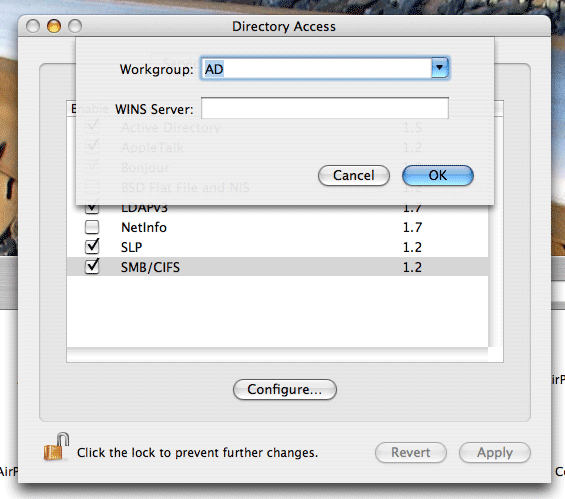
It is important that the account you log in with on your XP system has a password set, if it does not you will not be able to login to your Windows share from OS X. You need to put your Mac in the same workgroup as your Windows PC. To do this open "Directory Access" (Applications > Utilities > Directory Access). Click on the padlock in the bottom left corner to make changes; you will be prompted for your password. If "SMB" is not ticked off, then tick it off. Select "SMB" and hit the "Configure…" button. Now enter the name of your Windows workgroup. In my case the name is "AD".

Share iTunes videos between pc and Mac, iTunes videos from pc to Mac

Setting up the PC to share files
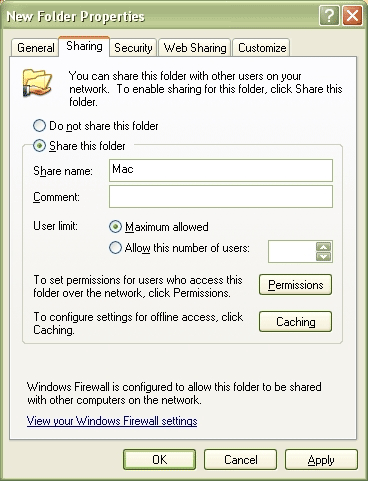
You need to create and share a folder on your PC that you will then access from your Mac. To do this create a folder (or select and existing one) right click on it from Windows Explorer and select "Properties". Select the "Sharing" tab and share out the folder. I'd recommend you use a one word name for the share. For example "Mac", not "Apple Mac Share", it just narrows the risk of complications.

Share iTunes videos between pc and Mac, iPod videos from pc to Mac

Setting up the Mac to share files
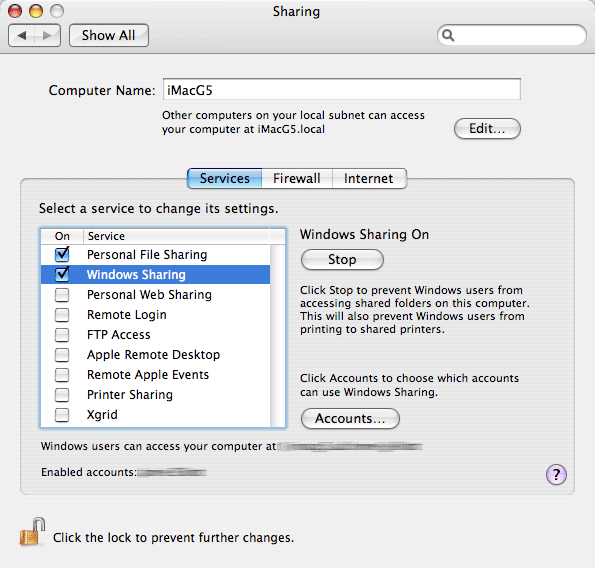
Open "System Preferences" (Applications > System Preferences). Go to "Sharing" under "Internet & Network", and tick off "Windows Sharing", and if it doesn't start by itself, click "Start". This will share out your entire home folder.

iTunes videos from pc to Mac

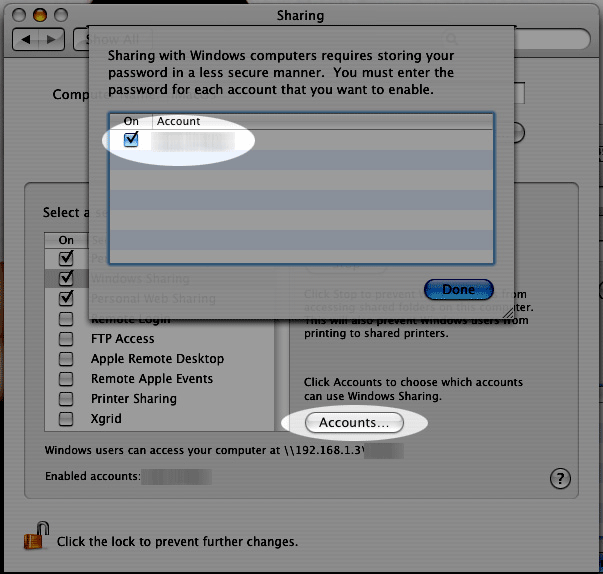
If You're running Tiger (10.4), you will also need to click the "Accounts" button and tick off the box next to your account name so that OS X knows to share out your particular home folder.

iTunes videos from pc to Mac

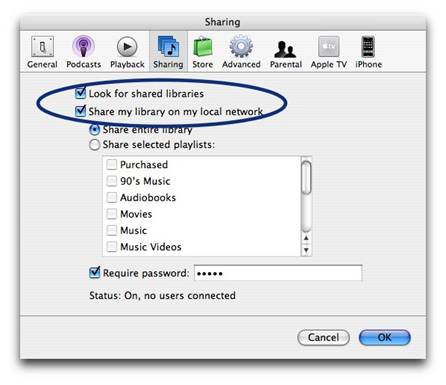
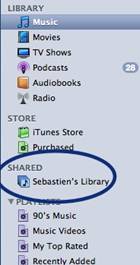
Step2, Go to preferences, under the sharing tab, enable "Share library..." and "Look for shared libraries..." on both computers.
Select the items you want to share.share iTunes videos and music for free

It will show up in iTunes' side panel:
share iTunes videos and music for free

To require users to enter a password before they can see your shared items, select "Require password" and enter a password.
You will need to authorize both computers to play purchased content however. You may authorize up to 5 Machines per iTunes Music Store account.
Tips:If you want to share music with other users on your computer ,read this article: iTunes: How to share music between different accounts on a single computer

2010年9月14日星期二

A Halo Universe Tries to Sparkle Without its Creator

When Microsoft’s (MSFT) much-anticipated new videogame, Halo: Reach, lands on shelves Wednesday, it will be the end of a chapter in the $2 billion franchise’s nine-year history.

Halo: Reach is the last installment in the series that will be made by Bungie Studios, the game development shop that created the franchise, nurtured it through most of its half-dozen iterations and is now moving on to other projects since spinning off from Microsoft three years ago. Microsoft will continue to own the Halo brand and has formed a new studio called 343 Industries that’s responsible for the ever-expanding array of Halo products that it envisions in the decades (yes, decades) to come.

Frank O’Connor and Bonnie Ross are the two executives at 343 Industries in charge of keeping the blood pumping at Microsoft’s Halo business in the post-Bungie era. It’s a scary prospect: think “Star Wars” losing George Lucas.

Read the rest of this post on the original site

2010年9月13日星期一

Twitter Kills the Password Anti-Pattern, But at What Cost?

Last week Twitter ended basic name/password authentication to its API. This was announced well in advance. Still, like many procrastinators, I found myself scrambling to learn what is now the only available way to authenticate to the Twitter API: OAuth.

Read the rest of this post on the original site

2010年9月12日星期日

Like It or Not, Twitter Has Become a News Platform

There’s been plenty of debate lately about whether Twitter has become “mainstream” or not, but examples continue to pile up of how the social network/microblogging platform has worked its way into our lives, to the point where it has become a form of media unto itself. Whether it will ever become mainstream in the sense that it gets used by your aunt or grandmother is almost irrelevant — the reality is that, for all its flaws, Twitter is a publishing tool, and an increasingly powerful one.

Read the rest of this post on the original site

2010年9月9日星期四

How to Copy DVD, Rip DVD, Convert Video on Mac

Many friends want to share their home-make DVDs and their DVD movies with others and also they always feel difficult to do that. Today I will share you a really easy way to Copy DVD to another DVD disc, DVD image ISO, or a DVD folder. Also I will also introduce you how to rip DVD and convert videos on Mac.

Part 1: How to copy a DVD to another DVD disc/DVD image ISO/DVD folder on Mac
Step 1: DVD Copy for Mac.
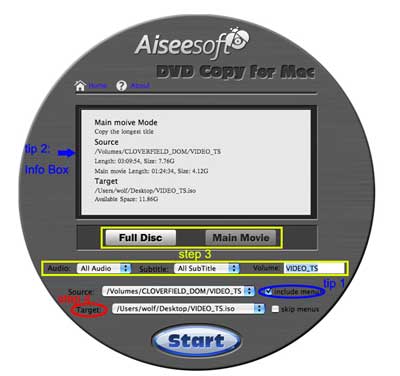
To copy a DVD on Mac, you need a DVD Copy for Mac to help you. Aiseesoft DVD Copy for Mac is a good choice.

DVD copy for Mac

Step 2: Load Your Source
This excellent DVD copy for Mac allows you to load DVD folder and DVD image ISO.

Step 3: Choose Output Info
1. "Full Disc" or “Main Movie”
This DVD copy for Mac enables you to copy the full disc and also the main movie according to your need.

2. "Audio", "Subtitle" and "Volume" name
You can choose your output audio from the "Audio" drop-down list, such as "all audio"/ "None"/ or some audio the DVD provide.

Subtitle is always an important thing, you can choose your output subtitle in "Subtitle" drop-down list.

You can also name your output volume's name

Step 4: Choose Your Target
You can copy your DVD to another DVD disc, DVD folder or DVD image ISO.

Tips:
1. You can also choose to copy the menus or not.
2. All the info you choose will be displayed on the "Info Box".

Part 2: How to rip DVD to video formats on Mac

Step 1: Download Aiseesoft DVD Ripper for Mac.

Step 2. Load DVD
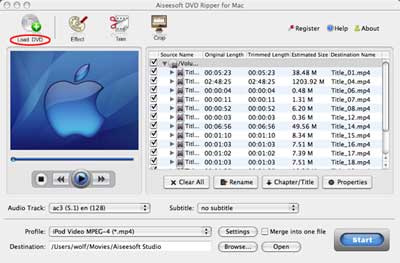
Insert DVD into your DVD-ROM, run DVD Ripper for Mac, click "Load DVD", find the DVD folder of the movie you want to add from your DVD-ROM, and Click "Open".

DVD ripper for Mac

Step 3. Set output format.
This best DVD ripper for Mac provides you output formats as many as you want. Just choose one from the drop down list "profile" according to your portable player.

Step 4: Conversion
You can just Click "Start" to begin your conversion.

Part 3: How to Convert Video files on Mac

Step 1: Download Aiseesoft Video Converter for Mac

video converter for Mac

Step 2: Load video
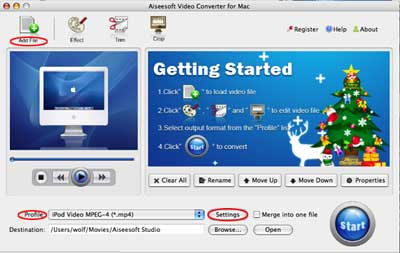
Easily click "Add File" to load your video that you want to convert.

Step 3: Choose output profile and settings
At the bottom of the interface there are a drop-download list named "profile". You can choose your output format here.

Tips:
1. Trim
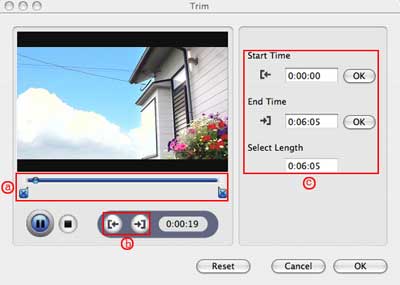
If you want to pick up a part of the video to convert, please click "Trim" button and drag the "Start trim slider" to set the start time and "End trim slider" to set the end time. (a) You can also do that by clicking the "Start trim button" and "End trim button" (b). The third way you do that is set the exact Start/End time at the right of the pop-up window and click "OK".(c)

trim

2. Crop
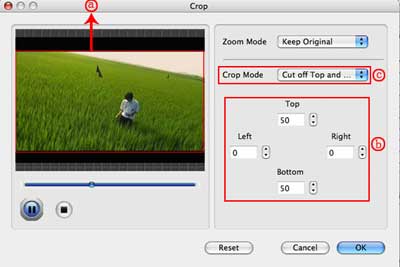
If you want to remove the black edges or you want to convert a certain area of your video, please click the "Crop" button. You can do this either by drag the frame around the movie (a) or set the crop value: "Top, Left, Bottom, Right".(b). Another way to do that is choose models from "Crop Mode"(c).
Aiseesoft Video Converter for Mac also allows you to chose the output aspect ratio above the crop pane, "Keep Original, full screen, 16:9 and 4:3" are available.

crop

3. Effect
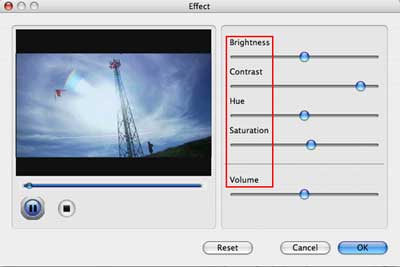
If you want to adjust the effect of your movie, please click the "Effect" button and a pop-up effect window will appear. It allows you to edit your movie’s effect including "Brightness, Contrast, Hue, Saturation and Volume".

effect

2010年9月8日星期三

How to Put Youtube videos on iPod, PowerPoint ,etc for free

This guide will show you how to download video content from numerous sites (youtube, Google Video,etc) and convert videos to iPod on Mac using two methods. It is pretty simple for according to the following statements.
iPod, iPhone accepts mp4 video detail as follow: MPEG-4 video, up to 2.5 Mbps, 640 by 480 pixels, 30 frames per sec., Simple Profile with AAC-LC audio up to 160 Kbps, 48 kHz, stereo audio in .m4v, .mp4, and .mov file formats.
PPT accepts: mpeg, asf, avi, wpl. wm, wmx, wmd, wmz, dvr-ms, mpv2, mp2v, mov, etc

1. Using free online YouTube converter
The first method is using a website to convert youtube video to iPod or powerpoint for free, Of course, you can also convert other media videos.
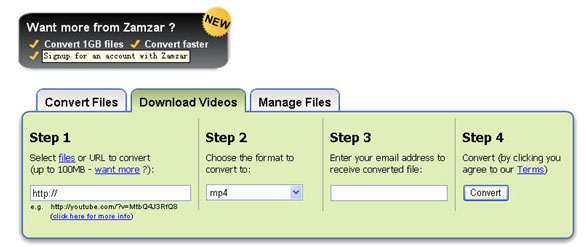
This is good for you when you only have one file to convert or you can't install the programs necessary for conversion. My favorite is zamzar converter.
You don't even need to download the video file to your computer. Enter the URL of the video to the box, choose the format you want to convert youtube videos to (iPod accepts mp4 video. So choose the format 'mp4'), and Enter your email address , then click 'convert'. The output file will be sent to your mailbox after the conversion.

zamzar converter

Another free online converter I like is media convert.
But you can't convert big video files using free online converters. It is up to 100MB. And the quality of the output files is so.

Tip: How to put pictures and photos to iPod, iPhone
1. Download iTunes from http://www.apple.com
2. Plug your iPod in to iTunes
3. Make a folder on the computer with all of the photos you want on your iPod (Name it something you with remember!)
4. Click on the iPod icon in iTunes
5. Click on the Tab "Photos" on the top.
6. Check the box "Sync photos from:"
7. Chose the folder all of your photos are in.
8. Click apply, then eject your iPod and enjoy your photos!

2. Using iPod video converter for Mac
The Second Method is using iPod video converter software to convert Youtube videos to iPod on Mac for free.
For this you need the following:
1. A video to download.
2. iPod Video Converter (Mac OS X version / Windows PC version).
Step 1: Download the videos
The downloaded file might be two formats: avi and flv . iPod and iPhone only support mp4 format. So you need to convert the videos to MP4 files.
PowerPoint understands .avi. If it the file is .avi, you do not need to convert it to put it on PPT. But most videos will probably be in .flv format. You can't embed Flash in PowerPoint. These will need to be converted to .mpeg or .avi format.
To do these conversions, you will need video converter which is capable of doing the conversion.

Step 2: Converting The Video to iPod, iPhone, Powerpoint, etc
Great, now you have located the file and downloaded it to the desktop. What's next? Well, you need to open up your freshly installed Aiseesoft Video Converter for Mac.
Click the "Add File" button to add the video files that get from the video sites to the program by automatically selecting an appropriate encoder for the video files you want to convert to.
Select the output format on the output format list. Aiseesoft iPod Video Converter for Mac can convert videos to almost all popular video players like iPod touch, iPod classic, iPod nano, iPhone, Apple TV, PSP, PS3, Youtube (web), Creative Zen, iRiver PMP, Archos, various video mobile phones and many other digital video and audio players. If you want to put videos to PowerPoint, you need to convert the videos to avi or mpeg formats.
This process only lasts a few minutes at the most.
If you want to convert several videos into one file, what you need to is to click'merge into one file' option . As we know, the mp4 format is high conpatible with iPod, iPhone, Apple TV, PSP, so it the best format for converting to iPod, iPhone, etc.

2010年9月6日星期一

Using iMovie to edit videos on Mac for free

This is a tutorial which explains the process of editing videos on a PC using Windows Movie Maker and editing videos on Mac using iMovie. This tutorial will be a concise explanation of how to editing videos for free. Then share your movie via the Web, e-mail, or CD. Using dvd burner you can even take movies you've made and turn movies into DVDs.
You can also save your movie back to the video tape in your camera to play back on a TV or on the camera itself.

This tutorial includes three parts, this is part two:
Part 1. Using Windows Movie Maker to edit videos on PC for free
Part 2. Using iMovie to edit videos on Mac for free
Part 3. A table that compares free video editors.

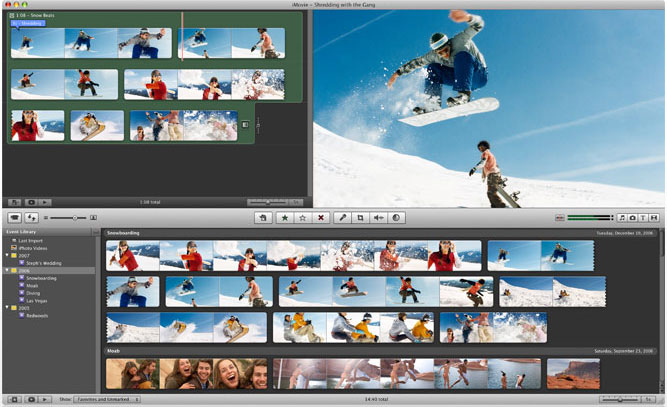
iMovie '08 makes viewing and working with video as intuitive as enjoying your photos. A built-in library automatically organizes your video, so all the clips you've captured and movies you've created are just a click away. With its revolutionary interface, iMovie makes it quick and easy to browse your library and create new movies. And iMovie is built for sharing. In just a few steps, you can add movies to your website, publish them on YouTube, and create versions for iPod, iPhone, and Apple TV.

iMovie - edit video

Step 1, Create an iMovie Project
Before doing anything in iMovie, you must create and title a new default folder as well as title and save our new project.
Step 2, Connect DV Camera
Make sure the camera is in PLAY (VCR) mode
Step 3, Add video
When your viewer says "Camera Connected," click the "Import" button. iMovie will play and import your digital video. When you wish to stop importing, click the "Import" button once more. Drag your imported clip(s) from the clips pane to the editable timeline along the bottom of the iMovie interface. iMovie treats deleted files differently that most other programs. If you delete a clip you CANNOT get it back.
iMovie will also allow you to import the following file formats:
3gp, AVI, DAT, MOV, MP4,MPG
If your videos are not the format that is compatible with iMove such as FLV and M4A, AIFF, AAC, you can use the video converter for Mac to convert the video first.
Step 4, Edit video
To Split a Clip: Place the cursor beneath the viewing window at the place in the movie where you want to split the clip into two. Go up to the "Edit" menu at the top, and select "Split Video Clip at Playhead."
To Crop a Clip: Drag the little triangles beneath the viewing window timeline to the desired in and out points. Go to the "Edit" menu at the top and select "Crop."
To add effect: Select "Effects" from the menu below the clips pane. Select a clip from the editing region to add an effect to it. Select an effect. Adjust the parameters of the effect beneath the preview window. The effect should automatically preview in the preview window. If you adjust the parameters of the effect, click "Preview" again to load the new effect settings. Click "Apply," and wait for the effect to render. You can monitor the effect rendering by the red progress bar that occurs within the clip the effect is being added to in the editing region. Save your work.
Step 5, Save your project
From the main menu, go to File > Save Project.
If you want to convert the movies made by iMovie to other video format, you can use this video converter for Mac. If you want to burn the movies made by iMovie to DVD, use DVD Creator for Mac.

2010年9月5日星期日

The Atlantic Joins the iTunes Newsstand

It’s $4.99 a pop at Apple’s (AAPL) digital store, and publisher Atlantic Media Company got Dow to pony up for the right to be the “launch sponsor” for the app. App developer RareWire did the technical heavy lifting.

2010年9月3日星期五

New From Symantec: Norton Antivizzle for PCizzle

Hip-hop star and noted role model Snoop Dogg is now lending his considerable moral authority to the fight against cybercrime. He’s teamed up with security software vendor Symantec (SYMC) to host an anti-cybercrime rap video contest.

Dubbed “Hack is Wack,” the competition invites aspiring law-loving lyricists to bust some malware rhymes on video for a chance to win an all-expenses-paid trip to L.A. to see a Snoop concert and “meet with select members of Snoop Dogg’s management team,” plus every gangsta’s dream: A Toshiba laptop with full Norton security suite (word to your sysadmin, yo).

“We’re trying to get people to raise awareness by making a rap song about cybercrime,” Snoop Dogg told Security Week, noting that his brand will inevitably bring mass attention to this important issue. “Come on man, you know when my team come after you, we gonna get you.”

My God, what an unfortunate alliance this is. I had no idea street cred was so important to the antivirus software industry.

What the hell is Symantec’s PR team smoking, you ask?

Evidently some of the same stuff Snoop is so fond of.

2010年9月1日星期三

Amazon Working on New TV, Movie Service

Amazon.com Inc. is trying to create a service that gives paying subscribers unlimited access over the Internet to some television shows and movies, as it tries to take on Netflix Inc. and grab a bigger slice of the online TV business.

The Seattle retailer has in recent weeks and months proposed a Web-based subscription service to several major media companies, including General Electric Co.’s NBC Universal, Time Warner Inc. and Viacom Inc., among others, according to people with knowledge of the proposal.

Read the rest of this post on the original site »