2010年8月31日星期二

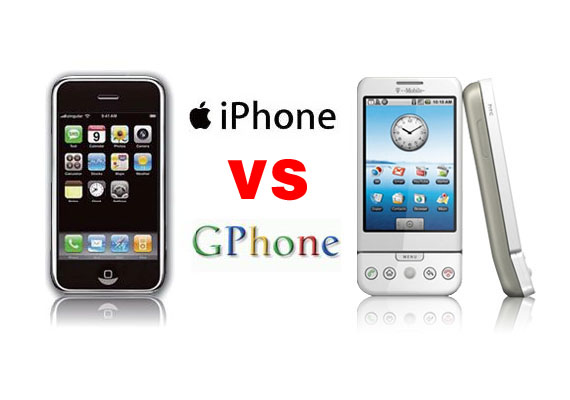
Gphone vs iPhone, which is better?

As iPhone is the most talked about smart phone on the planet and it has won millions of hearts of users by his multi-touch screen and other powerful/beautiful design. Of course, iPhone has brought so much money for Apple.
On 23rd, Sep 2008 Google released G1 and claimed that they will have a share of the big market of smart phone.
So, which is better about iPhone and G1? That maybe asked by many people who want to buy a new phone. Here I will give some of opinion about G1 and iPhone.
I will compare these two phones in three aspects, hardware, software, and their performance as a media player.

Gphone vs iPhone

Part 1: Hardware.

1. The price and storage memory
First, the price and storage memory is what I concern most, for iPhone $199 8GB, $299 16GB, for G1 $179 1GB. When you see this you will say G1 is $20 lower than iPhone but G1 is only 1GB and you will pay another $40 for an 8GB SD Card. So I think iPhone win in this round.

2. Appearance
iPhone is 133 grams/4.7 ounces and G1 is 158 grams/5.57 ounces. G1 is taller while iPhone is thinner (G1: 117.7*55.7*17.1, iPhone: 115.5*62.1*12.3).

3. Mobile Network
For mobile Network, they both have Quad Band GSM/EDGE UMTS, but G1 uses T-Mobile-only US 3G and iPhone uses AT&T-only US 3G.

4. Touch screen and input
About touch screen display, iPhone has Multi-touch 3.5 480*320 163 ppi, but G1 does not support mulit-touch. And in input aspect, G1 uses keyboard, Trackball, 6 buttons and touch screen, while iPhone has home button and multi touch screen.

5. Expansion
In expansion ports, G1 uses SD, ExtUSB(USB+audio) but iPhone has headphone, Dock connector (USB+ audio, video, remote). They have the same wireless WiFi 820.11b/g Limited Bluetooth 2.0 EDR.

6. Others
About hardware, the two phones perform almost the same and the only big difference is the iPhone uses multi-touch screen and G1’s camera is better than iPhone. And iPhone has a 1400Ah battery with 300 hours standby time but G1 only has a 1150Ah battery with 5 hours talk time and 130 standby.

Part 2: Software.

iPhone and G1 are both using Webkit as their browser engine. In media playback aspect, iPhone supports music, audiobook, video, streaming, downloads and rental, while for G1, only music playback. G1 has Android Market as its third party software store while iPhone has iPhone app store. G1’s platform is Modified Java development and iPhone uses Cocoa Touch.

Part 3: Their performance as media player.

G1 supports H.264, 3GPP, MPEG4, Codec 3GP video and MP3、AAC、AAC+、WMA、MPEG4、WAV、MIDI、REAL、AUDIO、OGG audio formats.
iPhone supports AAC,Protected AAC,MP3,MP3 VBR,Audible (formats 1, 2, 3), Apple Lossless, AIFF, WAV audio formats and H.264 (up to 1.5Mbps), MPEG-4 (up to 2.5Mbps) 640*480, 30fps, AAC-LC (up to 160 Kbps), 48kHz dimensional sound .m4v, .mp4 and .mov format.

Amazon MP3 Store allows you to download 6 million songs without the DRM protection, 89 cents per song. It is similar with the Apple iPhone, you need to pay for the video and audio sources on the Apple store. But how to get free sources for your G1.

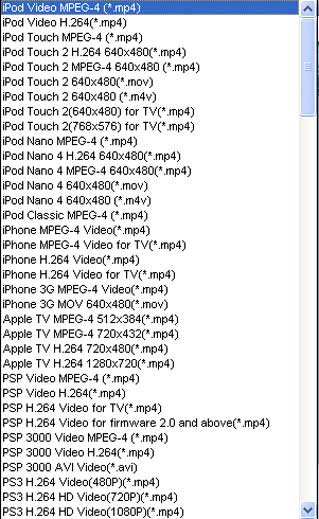
For iPhone and G1 you can buy songs and videos from store, which is really expensive, and you can also make songs and videos for your iPhone and G1 by yourself, you just need to convert your DVDs and videos to mp4 format and then you can put them easily to your iPhone and G1.

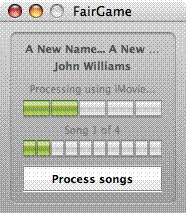
Here I recommend you Aiseesoft DVD Converter Suite, it includes Best DVD Ripper, Total Video Converter and iPod to Computer Transfer.
For Mac user, I recommend you Aiseesoft DVD Converter Suite for Mac, it includes DVD Ripper for Mac and Total Video Converter for Mac.

2010年8月30日星期一

How to share the iTunes Music and videos between two computers for free

Some people may meet that situation: You and your brother both have iTunes library under the same credit card account. Occasionally, you want to get the same song, however you wouldn't want you both to pay the $0.99 where virtually the same account is purchasing the song twice. So how can you and/or he download the songs from each other once it's purchased on a single computer? This is a guide to tell you how to share iTunes Music and videos between two computers such as sharing iTunes Music and videos between Windows PC and Mac OS X, sharing iTunes Music and videos between Mac OS and Mac OS X and sharing iTunes Music and videos between Windows PC and Windows PC

Step 1, Networking computers.
If you want to share iTunes videos and music between computers, you need to network PC and Mac first.
If you do not know how to Network Windows with Mac OS X, go there:
Networking Windows (2000/XP/2003*) with Mac OS X (10.3/10.4)
Information you will need to know
1.The IP Address of your PC (Start > Run > CMD {return} > "ipconfig" {return})
2The IP Address of your Mac (Applications > Utilities > Terminal {Run app} > for ethernet connection "ipconfig getifaddr en0" {return} or for wireless "ipconfig getifaddr en1" {return})>
3.The workgroup the PC is in (Right click on My Computer, select Properties, and select the Computer Name tab)

System Configuration
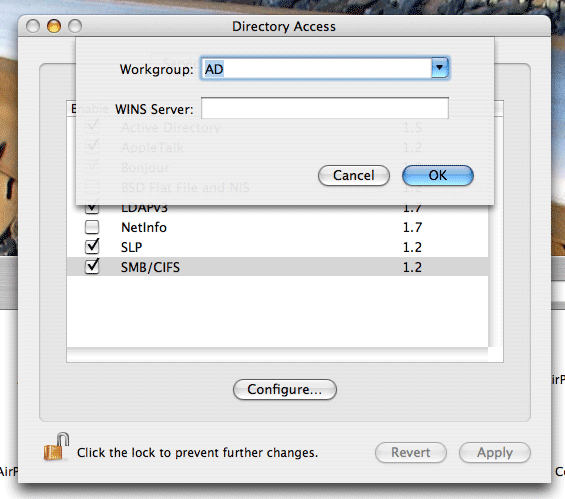
It is important that the account you log in with on your XP system has a password set, if it does not you will not be able to login to your Windows share from OS X. You need to put your Mac in the same workgroup as your Windows PC. To do this open "Directory Access" (Applications > Utilities > Directory Access). Click on the padlock in the bottom left corner to make changes; you will be prompted for your password. If "SMB" is not ticked off, then tick it off. Select "SMB" and hit the "Configure…" button. Now enter the name of your Windows workgroup. In my case the name is "AD".

Share iTunes videos between pc and Mac, iTunes videos from pc to Mac

Setting up the PC to share files
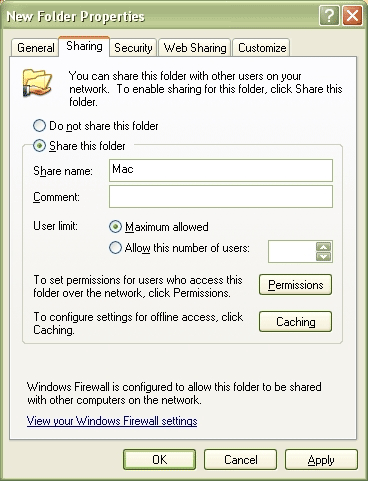
You need to create and share a folder on your PC that you will then access from your Mac. To do this create a folder (or select and existing one) right click on it from Windows Explorer and select "Properties". Select the "Sharing" tab and share out the folder. I'd recommend you use a one word name for the share. For example "Mac", not "Apple Mac Share", it just narrows the risk of complications.

Share iTunes videos between pc and Mac, iPod videos from pc to Mac

Setting up the Mac to share files
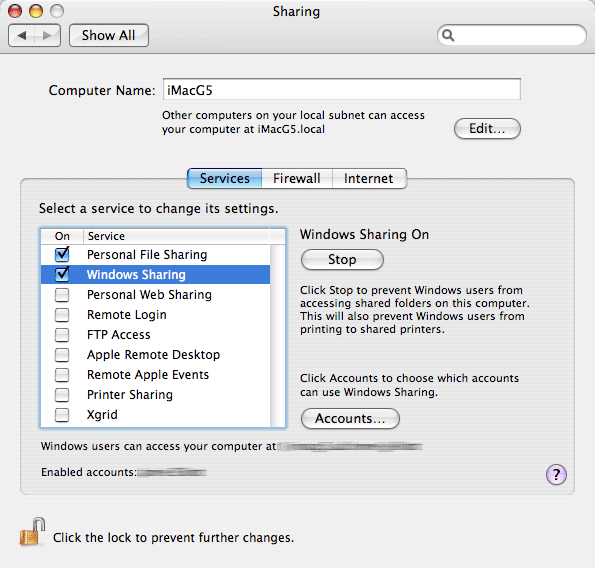
Open "System Preferences" (Applications > System Preferences). Go to "Sharing" under "Internet & Network", and tick off "Windows Sharing", and if it doesn't start by itself, click "Start". This will share out your entire home folder.

iTunes videos from pc to Mac

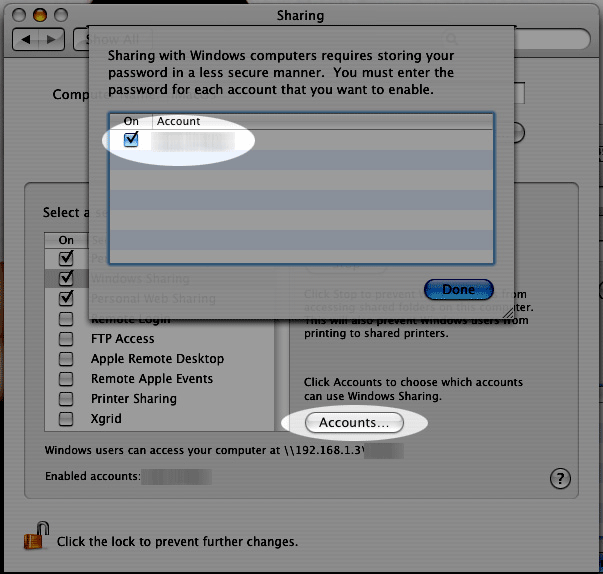
If You're running Tiger (10.4), you will also need to click the "Accounts" button and tick off the box next to your account name so that OS X knows to share out your particular home folder.

iTunes videos from pc to Mac

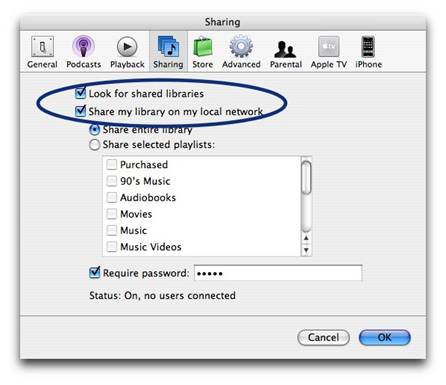
Step2, Go to preferences, under the sharing tab, enable "Share library..." and "Look for shared libraries..." on both computers.
Select the items you want to share.share iTunes videos and music for free

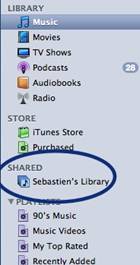
It will show up in iTunes' side panel:
share iTunes videos and music for free

To require users to enter a password before they can see your shared items, select "Require password" and enter a password.
You will need to authorize both computers to play purchased content however. You may authorize up to 5 Machines per iTunes Music Store account.
Tips:If you want to share music with other users on your computer ,read this article: iTunes: How to share music between different accounts on a single computer

2010年8月29日星期日

How to convert videos such as MP4, WMV, MOV and AVI to DVD for Free

DVD Flick is a free DVD authoring program that allows you to take a video file saved on your computer and converts it into a DVD that can play back in a DVD player, your computer, or Home Cinema set. The software allows you to add audio tracks and subtitles to your DVD. Your original video files may be in any of the following container formats: AVI, MOV, MPG, WMV, ASF, FLV (Flash video), Matroska and MPG. Supported codecs include MPEG-1, MPEG-2, MPEG-4, XVid, DivX, WMA and WMV (Windows Media Audio and Video), MP3, OGG Vorbis, H264 and On2 VP5/6. The program is open source.
DVD Flick is the all-in-one tool that can convert:
AVI to DVD, FLV to DVD, HDMOV to DVD, MKV to DVD, MJPG to DVD, MPG to DVD, M2V to DVD, MP4 to DVD, M4V to DVD, NSV to DVD, NUT to DVD, QT to DVD, MOV to DVD, RM to DVD, SMK to DVD, OGM to DVD, WMV to DVD, ASF to DVD, 3GP to DVD, 3G2 to DVD for free.
DVD Flick supports DVD Authoring, ISO image creating, DVD burning also in one tool.
System requirements:

  • A Pentium or AMD K-6 processor. Pentium 3 or later recommended, the faster the better.
  • 64 MB of free physical RAM, 128 MB or more is recommended.
  • Windows 2000, Windows XP , Windows Vista (If you are Mac user, use this Mac dvd creator)

Download the latest version of the DVD Flick website
If you are using Mac, Please click here to download the Mac DVD Creator

1. Download and run DVD Flick
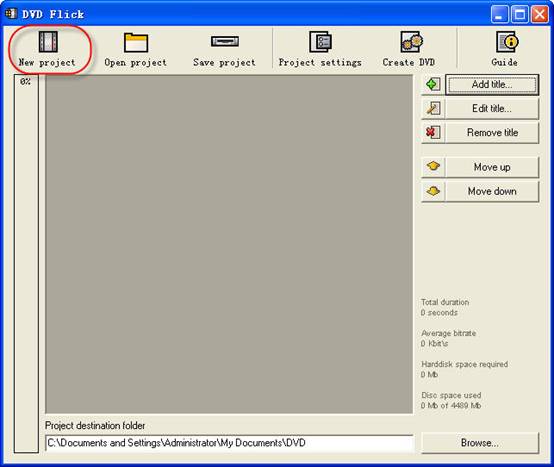
DVD Flick

2. Click "New project” button to create a new project.
3. Browse your hard drives to select path to the folder, where the resulting DVD folders
(AUDIO_TS, VIDEO_TS) will be saved. It is highly recommended to use NTFS file system in your OS, cause the temporary m2v files in most cases exceeds 4GB limit for FAT32 file system. Additionally, don't use non-English letters to the browsing path, because the errors could occur during DVD authoring process.
4. Add your title - select the video file or files for the project. DVD Flick supports these video file types: AVI, FLV, HDMOV, MKV, MJPG, MPG, M2V, MP4, M4V, NSV, NUT, QT, MOV, RM, SMK, OGM, WMV, ASF, 3GP, 3G2.
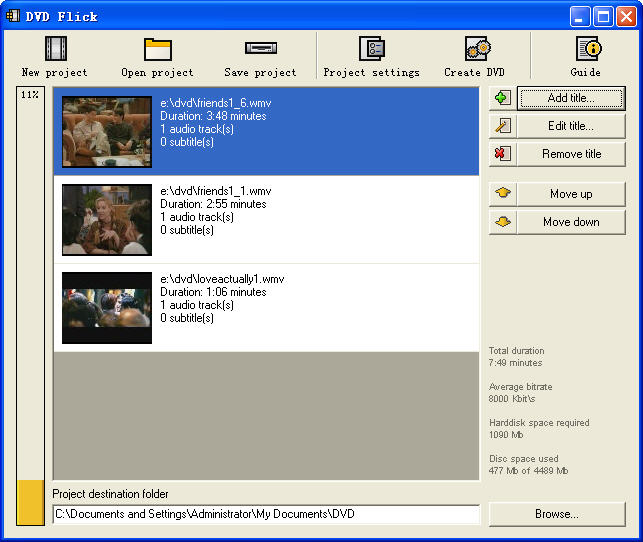
5. Title added. Left bar indicates how many bytes is used on the blank DVD disc with the default preferences. The percentage depends on the video file size which you have added in the previous guide step.
 DVD Flick - Title added

6. Edit title.
(1) General settings for the "Title".
reate chapters every: Purpose of the chapters usage is forward/back skipping forward during the DVD viewing. It is recommended to use this option.
You can also use fixed numbers of chapters - check "Create" button.
Aspect ratio is an auto detected value received from video file's frame dimension.
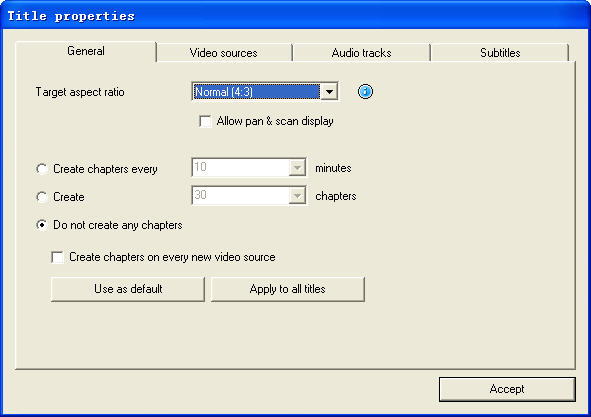
DVD Flick - Edit
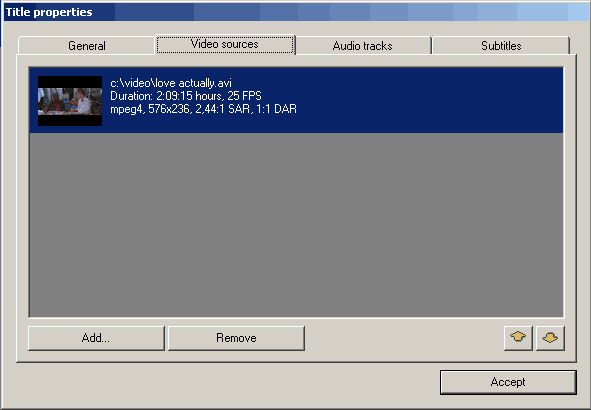
(2) Video sources for the "Title" - this tab informs us about video codec, frame size, Aspect ratio value, frame rate - Frames Per Second.
DVD Flick - Title
Frame rate. Check the bottom listing:

  • 23,976 FPS - NTSC Film Format
  • 25 FPS - PAL Format
  • 29,97 FPS - NTSC Format
  • 30 FPS - NTSC Format Reccomendations for the non-standard
  • 12,5 FPS - PAL Format
  • 15 FPS - NTSC Format Warning! Remember the format for your file - it will be the same "Target format" in "Project settings" .

Add a file to a title: This option allow to you to add new file or files to the "Title". It could be additional videos for this DVD, cutted scenes for examples, etc. Important thing is the same FPS for the main video file and the additional file.
Remove a file to a title: You can also remove a file to a title.
(3) Audio tracks tab.
Remove an audio track: Press "Edit" button, then remove from the "Audio track sources" additional audio track.
Add an audio track: Press "Add" button on the ”Audio track sources" tab, select the audio file from hard drive, check in the new "select audio track(s)" window track(s) you wish to add. Press "Accept" button. DVD Flick could extract audio tracks from all supported video files (AVI, FLV, HDMOV, MKV, MJPG, MPG, M2V, MP4, M4V, NSV, NUT, QT, MOV, RM, SMK, OGM, WMV, ASF, 3GP, 3G2), and also native audio file formats: AAC, AC3, Flac, MKA, MP3, MP2, MPA, OGG, WAV, WMA
Select language for the additional audio track. Select the audio track, and then select from the”Track language" list box.
(4). Subtitles tab.
Add subtitles. Press "Add" button on the "Subtitles" tab, and then select from disk file with subtitles. DVD Flick supports these subtitles formats: AQT, JS, RT, SMI, ASS, SRT, SSA, TXT. Subtitle settings. Press "Edit" button to change subtitles settings. Select the language you need. Other settings are for the Font, Font size, and placement of the subtitles. As usually, press "Accept" button to save setting. "Force display" option will force subtitle displaying during playback, even they were not selected in menu.
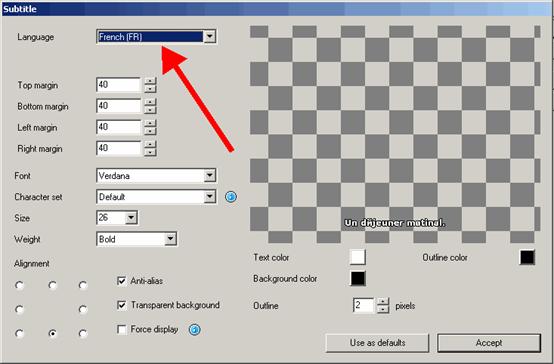
DVD Flick - Subtitles tab

If everything was made rightly, we will see this window with the changed settings for subtitles. There are no more editing tabs for "Title properties". Press "Accept" button to save preferences.
7. Project settings. At the DVD Flick main window press "Project settings" button.
General tab.
Select a "Target size" for your DVD from list box. The default value is "DVD (4,3 GB)", default values could be changed by pressing "Use as defaults" button. If you need to select custom DVD size just scroll up the list box to the "Custom" value and the bottom "Custom size" option will be enabled for editing.
"Encoder priority" allows to you to use "DVD Flick" with high priority in your operating system to decrease full encoding time.
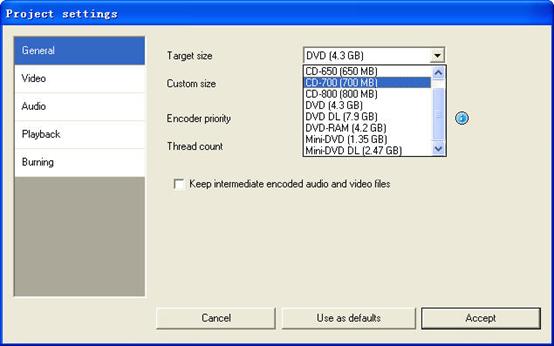
DVD Flick - General tab.

Video tab.
Set your DVD "Target Format".
"Encoding profile" for better encoding performance is highly recommended to select as "Normal" or "Best". "Fastest" and "Fast" mode decrease full encoding time, but with the lower quality results.
"Target bitrate" is more easy to use as "Auto fit". This option will calculate bitrate for encoding automatically depends on DVD "Target size" and will be set as maximum possible value. If you have some advanced experience with DVD encoding, you can set "Custom bitrate".
Set up advanced video options - press "Advanced" button.
Check "Second encoding pass" to improve output encoding results. It is highly recommended to use this option, but it wills increase full encoding time.
Check "Half horizontal resolution" to enable Half D1 DVD Mode - one of the standard for DVD, decreases frame size to 352x576 for PAL and to 352x480 for NTSC (instead of 720x576 (PAL) and 720x480 (NTSC)). Could be used as a possibility to decrease encoding bitrate, for more video length on one DVD disc.
Check "Add overscan borders" to make your DVD with black left and right borders to view all the source video on your TV.
Deinterlace option is not recommended to use.
Check "Force MPEG-2 recompression" to recompress your mpeg-2 video source files, do not check option if m2v files were encoded with Cam Video Tool 4 DVD Flick.
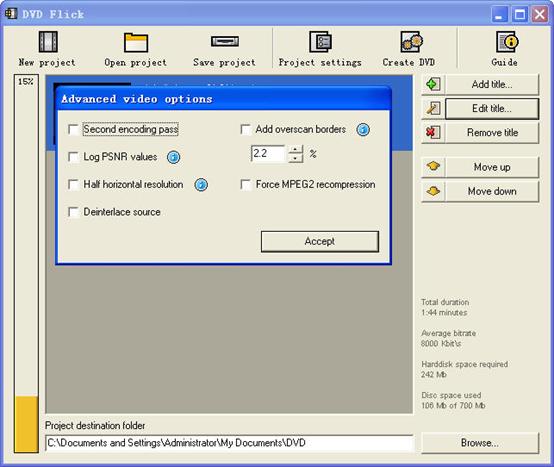
DVD Flick

Burning tab.
If the "Create ISO image" is set, the ISO image file will be created on your disk, in the "Project destination folder". ISO image could be useful, if you prefer to burn DVD using another application, supporting ISO images. "MDS" (Media decriptor) file will be created also. If you want to burn your DVD with DVD Flick, check "Burn project to disc" (red arrow). if you are using DVD+RW, DVD-RW disc, check "Automatically erase disc if it is rewritable". If quick erase will be not possible, ImgBurn (included in DVD Flick installation package) will make full erase for rewritable discs.
Accept all "Project settings" using "Accept" button. Now we are ready to burn our DVD.

8. Create DVD.
Press "Create DVD" button at the main window.
DVD Flick will ask for confirmation to proceed - press "Yes".
Additional warning about "Project destination folder" - Press "Yes".
"DVD Flick Progress" window shows to user all executed steps.
When the DVD burning will be done, we will see this window. Press "Close" to return to the DVD Flick main window. In the main window you can save DVD Flick project to your hard drive.

DVD Flick is only for Windows PC users. If you are Mac user, you can use this best DVD creator for Mac. It is a professional Mac DVD Burner program that converts almost all popular video formats such as FLV, MPEG1, MPEG2, MP4, DAT, 3GP, 3G2, MOV, AVI to DVD on Mac. And it can burn DVD movie playable on portable or home DVD player on Mac.

If you want to convert iTunes videos to DVD, you need to get the videos from iTunes to computer .
And then use DVD flick to convert iTunes videos to DVD for free.

If you want to burn YouTube videos on DVD, you can download the youtube videos to your computer.
And then using DVD flick to burn YouTube videos on DVD for free. If you are a Mac user, use this best dvd creator for Mac to help you. You can also copy videos form other video sites such as veoh, google video, iFlim, vidilife, blip.tv, music.com, zippyvideos, dailymotion, devilducky, etc and then burn them to DVD using this methods.

Here are some other DVD burner.
DVD Styler
DVD Styler is an open source DVD authoring system for Windows and Linux. It converts MPEG files, which you can drag and drop into its window, create NTSC/PAL DVD menus which are highly customizable (you can set image backgrounds, put text and images anywhere, change the font and colors, etc), set chapters for the movie, etc.
DivXtoDVD Perl Script
DivXtoDVD is a Perl script for Linux and other Posix systems (like BSD, Unix, Unix-like operating systems) that converts a DivX movie to DVD compliant files (AUDIO_TS and VIDEO_TS directories and files). It uses transcode, ffmpeg, mjpeg and dvdauthor to do the job in one step. The software is open source. Note that this is different from the commercial ConvertXtoDVD software which was also formerly named DivXtoDVD. If you're looking for the latter, a trial download is available.
ImgBurn
ImgBurn is a lightweight CD / DVD / HD DVD / Blu-ray burning application that everyone should have in their toolkit! It has several 'Modes', each one for performing a different task:
Read - Read a disc to an image file
Build - Create an image file from files on your computer or network - or you can write the files directly to a disc
Write - Write an image file to a disc
Verify - Check a disc is 100% readable. Optionally, you can also have ImgBurn compare it against a given image file to ensure the actual data is correct
Discovery - Put your drive / media to the test! Used in combination with DVDInfoPro, you can check the quality of the burns your drive is producing
Q DVD-Author
Q DVD-Author is essentially a GUI front-end for dvdauthor and other related tools found on a Linux system. You can create DVD menus, convert your projects between PAL and NTSC (and vice versa), create sub-menus, add subtitles, transcode your input videos from other formats, apply multiple audio streams to the videos, give menus multiple soundtracks, create a DVD slideshow, create animated menus, etc. This is an open source program that works under Linux and other Posix OSes.
KDE DVD Authoring Wizard
The KDE DVD Authoring Wizard allows you to create a DVD from a DVD-compatible MPEG-2 file (that is, it doesn't do the conversion from other formats for you). You can add multiple files and create a menu of the playlist if you wish. Your DVD menu can have multiple pages, a soundtrack from OGG or MP3, animated thumbnails and be in the NTSC or PAL format, be in 16:9 widescreen or 4:3 full screen, etc. This DVD authoring tool works under Linux. It is open source.
2010年8月27日星期五

Intel Intent on Ingesting Infineon Unit

Intel’s in an acquisitive mood these days. A week after buying antivirus software maker McAfee for $7.68 billion, the company is reportedly finalizing a deal to acquire Infineon Technologies’ wireless business. No word yet on terms, though Infineon’s asking price is rumored to be nearly $2 billion.

If it’s able to consummate a deal–and sources say that could happen as early as today–Intel (INTC) will with one move become a major player in the smartphone chip market, a component supplier to the likes of RIM (RIMM), Samsung, Nokia (NOK) and Apple (AAPL)–you’ll find Infineon silicon in the iPad and iPhone. And that’s something Intel has openly lusted after for years–or at least since it sold off its own communications and application chip business to Marvell four years ago.

2010年8月25日星期三

How WikiLeaks Keeps Its Funding Secret

The controversial website WikiLeaks, which argues the cause of openness in leaking classified or confidential documents, has set up an elaborate global financial network to protect a big secret of its own—its funding.

Some governments and corporations angered by the site’s publications have already sued WikiLeaks or blocked access to it, and the group fears that its money and infrastructure could be targeted further, founder Julian Assange said in an interview in London shortly after publishing 76,000 classified U.S. documents about the war in Afghanistan in July. The move sparked international controversy and put WikiLeaks in the spotlight.

In response, the site has established a complex system for collecting and disbursing its donations to obscure their origin and use, Mr. Assange said. Anchoring the system is a foundation in Germany established in memory of a computer hacker who died in 2001.

Read the rest of this post on the original site

2010年8月24日星期二

20 Percent Of Americans Have Played Games On Social Networks

20 percent of the U.S. population ages six or older have played a game on a social network over the past three months, according to a new study by market research firm NPD Group. That’s 56.8 million Americans spending time playing games like Farmville and Mafia Wars.

The study finds that 35 percent of social network gamers have not previously participated in computer gaming. In one surprising finding, NPD finds that female social gamers outnumber male social gamers, 53 percent to 47percent.

The report also finds that 10 percent of social network gamers have spent money playing the games.

Read the rest of this post on the original site

2010年8月22日星期日

Put Limewire music, YouTube video on iPod

1. Put music and videos from Limewire to iPod
Limewire is a download tool I assume lot of us use. I often use it to download free music and videos and put them on my iPod. I also often visit Youtube to watch videos and sometimes I download videos from Youtube to put on my iPod.
Search and download songs from Limewire. You may get songs in all sorts of formats, but not all formats are supported by iPod. Usually I select three formats: MP3, AAC and M4A formats that are supported by iPod and can be directly transferred to iPod using iTunes. For the detailed specs info, you can visit http://www.apple.com/iPod/specs.html. After you download the songs, open your iTunes, click "File" from the upper left corner, select "Add file to library", browse your computer hard drive and find the songs downloaded by Limewire, select the songs you prefer, click OK and the songs will be put in your iTunes. Then you can just transfer the songs to your iPod from iTunes.

2.Youtube video to iPod
I often visit Youtube to watch videos and sometimes I download videos from Youtube to put on my iPod. Youtube videos are in FLV formats, so I use a free online FLV converter to do the conversion:
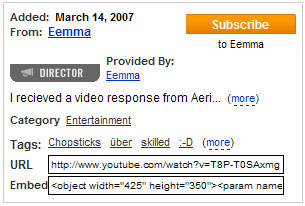
Firstly, go to Youtube and open the page of the video you want to put on your iPod. And you will find the Youtube URL of this video to the right of the playback window. Then copy this URL. See the highlighted area in the figure below:

put Limewire music, YouTube video on iPod

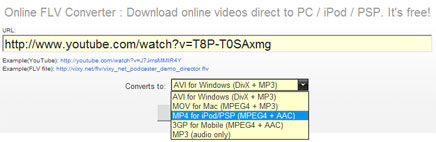
Secondly, go to http://vixy.net/ , paste the copied URL into the URL field of this web page, and select "MP4 for iPod/PSP" from the "Converts to" drop-down list. Then click "Start" below this list to start the conversion. See the highlighted areas below:

put Limewire music, YouTube video on iPod

Finally, after the conversion, this website will provide a download link for you to download the converted MP4 file. When you see the link, you can just download the final file from the link, save the downloaded MP4 file on your computer and use iTunes to sync it on to your iPod.

Recommended Products For you:
DVD to iPod Converter for Mac
It's a specially designed iPod conversion program to Convert DVD to iPod touch, iPod classic, iPod nano, convert DVD to iTunes on Leopard.
DVD to iPod Converter for Windows
It is one of the best conversion programs for PC that can put DVD on iPod touch, iPod classic, iPod nano and so on.

How to upload videos to YouTube easily and quickly on Mac

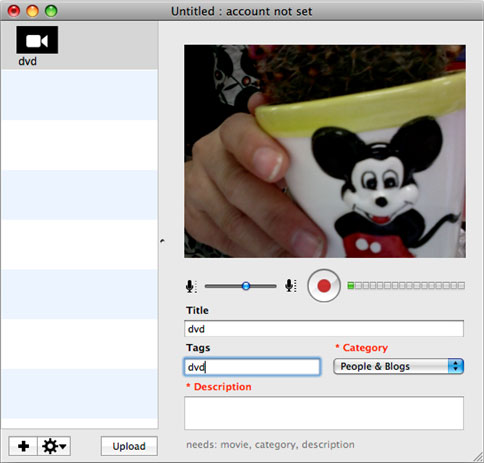
Google has released basic software called Vidnik which is the quickest, simplest way to make movies using the built - in camera on your Macintosh and upload those movies to your YouTube account. You must first sign up for a free YouTube membership to upload videos. You can use Vidnik to create a video diary, or just to quickly record a video comment to attach to an existing YouTube video. Vidnik works with the built-in video cameras on recent Macs, with Firewire video cameras, and with many USB video cameras.

Part 1, use Vidnik to Record video segments using your iSight camera and upload them to YouTube.

upload video to YouTube

To use Vidnik, run the app, then click the record button to start recording. Click it again to stop. Trim to just the golden moments you want to keep, as in the screen shot above. Fill in the required title, description, and so on. Click the upload button. That's it.

Part 2, Use Vidnik to upload videos to youtube
You can drag movies made in other programs onto Vidnik's column of movies, and then click the upload button. And to use another program to do a little post-production, use the Gear menu to show Vidnik's movie file in the Finder. Edit the movie in the other program, and then upload it.Vidnik can only support videos such as: 3GP, AVI, DAT, MOV, MP4, M4A, WAV, AAC. It does not support ASF, FLV, MPEG, RM, WMV, MP3, AC3.
You can use the video converter for Mac to convert your videos to the formats that Vidnik can run.
If you want to upload DVD to TouTube, you need to use DVD ripper to rip DVD to video formats supported by YouTube first. If you are Mac user, you can use this DVD ripper for Mac .

upload DVD to YouTube

2010年8月18日星期三

How to Add Limewire Songs to iPod

Many people download music from Limewire, but they can only listen them on computer. Put songs from Limewire to iPod touch is really difficult to many iPod users. Yes, you need to convert Limewire songs to iPod audio format by iPod Music Converter; actually, it is iPod mp3 converter or audio to mp3 converter, because iPod accepts mp3 audio files.

This article will share you how to add Limewire songs to iPod.

Part 1: For Windows users, how to add Limewire songs to iPod.
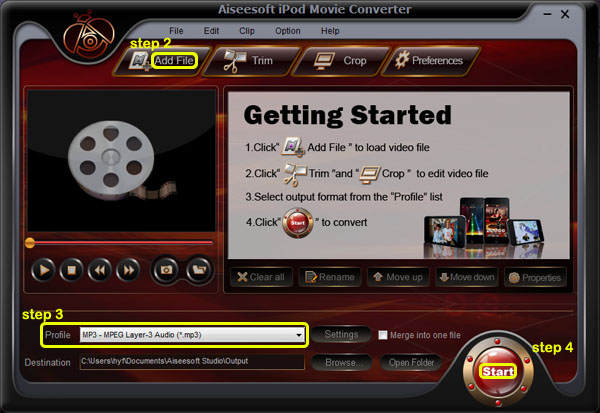
Step 1: Download Aiseesoft iPod Movie Converter
You need to download an iPod Music converter:

iPod Music Converter

Step 2: Add Music
Click “Add File” and find your Limewire songs to load into iPod Music Converter
Step 3: Choose output format
You can choose output audio format from profile drop-down list—MP3
Step 4: Start to convert
Click “Start” button to begin your conversion.

Then you also need a tool to transfer your songs to your iPod.
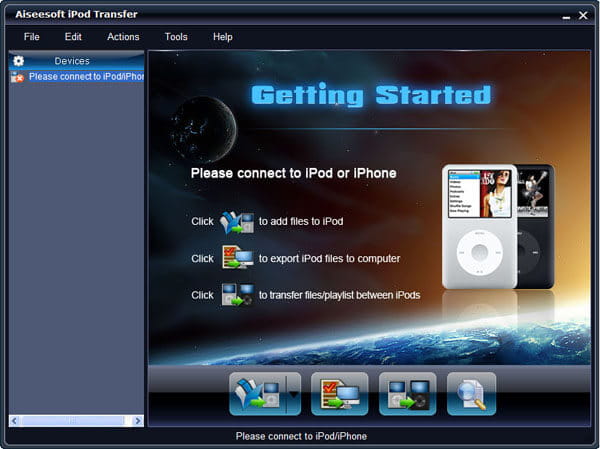
Here I recommend you Aiseesoft iPod Transfer.

iPod Transfer

It is very easy to use:
Step 1: Connect iPod.
Plug your iPod to your computer via USB cable.
Step 2: Add songs
Click “PC to iPod” button to pick up the songs you have already converted and click “OK”. Now, you can enjoy your Limewire songs on your iPod at will.

Part 2: For Mac users, how to add Limewire songs to iPod
For Mac users, I recommend you Aiseesoft iPod Video Converter for Mac and Aiseesoft iPod Manager for Mac.

iPod Video Converter for Mac
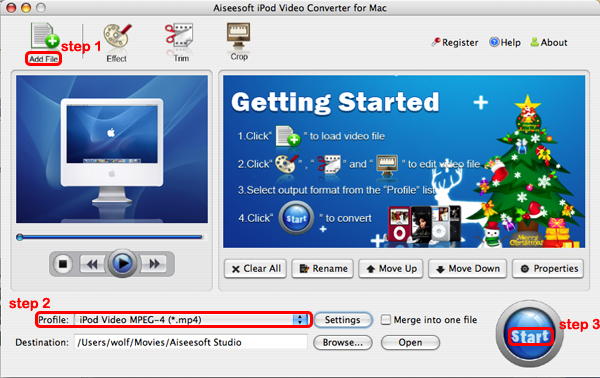
Step 1: Add file
Click “Add File” to load your music
Step 2: Choose output audio format
Click “profile” to choose your output audio format.
Step 3: Convert
Click “Start” button to begin your conversion.

To transfer converted songs to iPod, Mac users can use iPod Manager for Mac.

iPod Manager for Mac
Step 1: Connect iPod
Plug your iPod to your computer
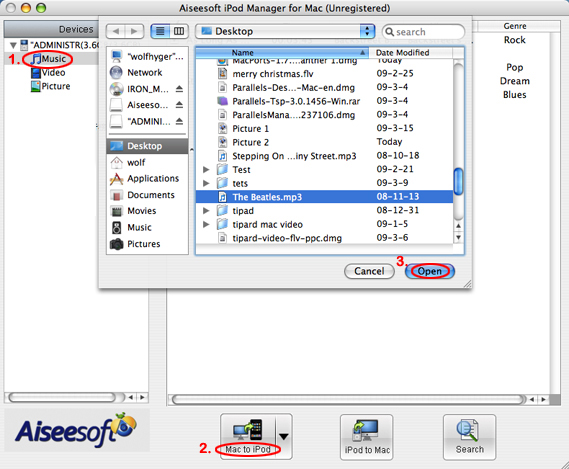
Step 2: Add music
1. Click “Music” (1)
2. Click “Mac to iPod” (2) and pick up the songs on your Mac you want to put on your iPod and click “Open” (3)
Few seconds later, the songs will be on your iPod.

2010年8月17日星期二

AP decides not to LOL

The Associated Press almost shared a page with LOLcats.

Pet Holdings Inc., which owns a network of blogs that post pictures of felines with silly captions, and videos of men getting hit in the groin on its Fail Blog, had been wrapped in rather lengthy negotiations with the Associated Press until this week.

Read the rest of this post on the original site

2010年8月15日星期日

Take This Blog and Shove It!

In the history of the web, last spring may figure as a tipping point. That’s when Wikipedia, “the free encyclopedia that anyone can edit”—a site that grew from 100,000 articles in 2003 to more than 15 million today—began to falter as a social movement. Thousands of volunteer editors, the loyal Wikipedians who actually write, fact-check, and update all those articles, logged off—many for good.

Read the rest of this post on the original site

Life, Liberty and the Pursuit of Affordable Broadband?

Should it be the government’s responsibility to make affordable broadband Internet access available to everyone in the country? About 53 percent of Americans think not, or think that it shouldn’t be a top priority, according to a study released today by the Pew Internet & American Life Project. Only 11 percent think of it as a high priority. Interestingly, those least inclined toward government involvement are the 80 million currently without any Internet access at all.

2010年8月13日星期五

How to Remove DRM from WMV

Windows Media Video (WMV) was developed by Microsoft and these files are playable using Windows Media Player. There are numerous portable media players available which support WMV playback. You can use a .WMV file for either streaming or downloading. Downloaded Windows Media Files come with the protection by the DRM License itself. If you try to play it for the first time on your PC, then Windows Media Player will try and look for the license on the PC.
It's explicable that you would like to remove DRM from WMV files. You can play a windows media video file without obtaining a license from the digital rights management server. There are several ways of achieving this task of removing of DRM from WMV. Here are a few of freeware to help you to remove DRM from WMV:

1. freeme2
freeme2 (Download freeme2) is a free and open source DRM remover. It is used to remove DRM from Windows Media audio and video files. freeme2 is a command line application. You need to learn how to use console applications to run it.
How to use freeme2 (drag-n-drop)
Drag-n-drop method is much easier than the one using command line console:
Put your DRM protected media files in the same folder as Freeme2.
Extract your license keys. You can do this with drmdbg. If you use drmdbg you can take the drm2-i.key file generated by drmdbg, rename it to drm2.key and copy it to the FreeMe2 folder.
Drag your sample.wma file onto FreeMe2.exe. It starts up and runs fine.
How to use freeme2 (command line console)
Put your DRM protected media files in the same folder as freeme2.
Run the Windows command console: Hit "Start"->hit "Run..."->type CMD->Hit the "OK" button.
Then, once in the command console, chage the directiry by using the "cd" command to the directory where your FreeMe2 is located.
Extract your license keys. You can do this with drmdbg.
Type the following in the command line console: "freeme2" (without quotes) and press the Enter button.
2. Aiseesoft Total Video Converter
Aiseesoft Total Video Converter is a powerful video and audio converter for all popular media formats including: WMA, WAV, WMV, M4A, M4P, M4V, AAC, M4B, 3GP, AVI, ASF, MP4, FLV, MP3, etc. so users can easily enjoy the DRM protected formats with their mobile players like iPhone, iPod, PSP, etc.
How to use Aiseesoft Total Video Converter.
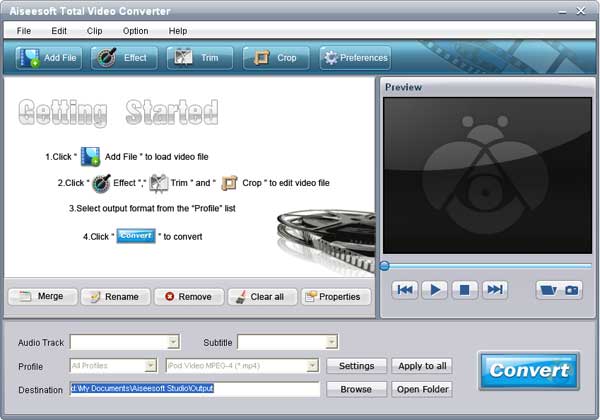
Click "Add File" to import files to the program.
Click "setting" to customize the parameters for output audio and video.
When you finish all the necessary settings, you can start conversion. The selected files in the file list will be automatically converted one by one after you click Start button. if you convert files that bought from iTunes Store, you need to do some setting as the image shows.
please click here to learn the full guide.

Total Video Converter

3. AnalogWhole
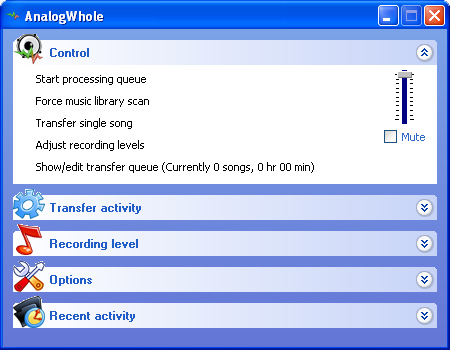
AnalogWhole (Download AnalogWhole) is a free Windows application that allows you to consolidate all your music into iTunes as MP3 files. Any music that is playable in Windows Media Player can be re-recorded as an MP3 file. Just tell AnalogWhole where your music library is, and it will automatically re-record the files as an MP3 file. In addition, it will add the converted song to iTunes for you.
With AnalogWhole you can convert all those WMA or WAV files you have that won't play on your iPod into MP3 files that will play on iPod.
The way AnalogWhole works is pretty straightforward. Almost all PC soundcards have the ability to simultaneously play music out one channel while recording music on another channel. The standard Windows audio mixer component allows the output channel to be routed back into the soundcard input channel. AnalogWhole uses the COM interface to Windows Media Player to play the music file and while it is playing, it records it and encodes it as an MP3 file. All tagging info (i.e. artist, song title, album et cetera) is transferred to the MP3 file as well.

AnalogWhole

4. Automate unDRM.
Free DRM removal from .WMV, .ASF, .WMA (Windows Media audio/video files). Included in the download pack: drmdbg, drm2wmv, DecryptIt.
You can Download Automate unDRM here.
Automate unDRM v2.0 can't crack DRM license. You must have VALID license files on your harddrive and be able to play the DRM protected files without restrictions. Automate unDRM v2.0 is intended to be used to make fair-use backups only. Please do not abuse this rule.
Automate unDRM is used to automate the DRM removal process by drmdbg and drm2wmv. drmdbg and drm2wmv don't convert your original Windows Media audio and video files, they just remove DRM header of the media file, so you get lossless conversion of DRM protected media files.
Automate unDRM works only with Windows Media Player 9 or 10.00.00.3646 (unless you update your drbdbg.exe).

5. FairUse4WM
FairUse4WM (Download FairUse4WM) can't crack DRM license. You must have VALID license files on your harddrive and be able to play the DRM protected files without restrictions.
FairUse4WM is intended to be used to make fair-use backups only. Please do not abuse this rule. FairUse4WM is a GUI version of drmdbg (DRM removal tool). drmdbg doesn't convert your original Windows Media audio and video files, it just removes DRM header of the media file, so you get lossless conversion of DRM protected media files.
FairUse4WM supports Windows Media Player 9, 10, 11 (individualization version up to .3930).
Basic requirements: Only works on individualized DRM file.
Requires Windows Media Player (WMP) 9, 10 or 11 beta 1 and 2. Although there is no support for WMP 11 final. Works with both individualized content and some DRMv1 files. Does not work with Win98 or similar.
The program's functioning can be verified by stripping DRM protection from Demo files from ezdrm.com, as well as those from other Microsoft Solution partners.
Note that some Windows Media Player installations will have multiple ECC key-pairs, so you will likely have to "Extract Keys" using multiple licensed files. If you find a file that doesn't convert, try extracting keys with it. Once your whole set of keys is extracted, you will no longer need to run Windows Media Player per file.

2010年8月11日星期三

How to convert MTS, TS, M2TS Video to HD video, MP4, WMV, AVI

Record everything around you and share with the world/friends/family is becoming more and more popular among young people. Get a HD Camcorder is necessary and also how to share is really important. I think you can use youtube.com, make a DVD and so on. As the video you record on your camcorder is MTS, TS, M2TS or other HD video format, so you have to convert them into normal video format to edit.

Today I will share with you how to convert MTS, TS, M2TS video to normal video formats.
You need 3 nice tool to do it: MTS Converter, TS Video Converter, M2TS Converter.

Part 1: How to convert MTS video
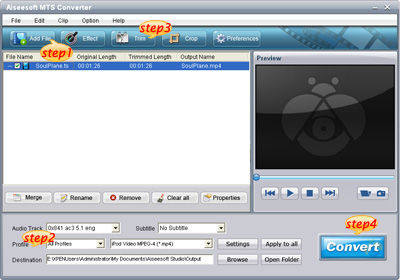
Step 1: Load Video
Click "Add File" to load the video that you want.

MTS converter

Step 2: Choose Your Output Profile and Settings
From "Profile" drop-down list you can choose your output profile according to your need.
For example, if you have a iPod and you want to convert video for it, you need to choose "iPod" from the profile list and then it also provides the second chance to specify your iPod generation.
You can also click "setting" adjust the settings of your output video, such as "video/audio encoder", "Video/audio Bitrate", "Channels", "Resolution" and so on..

Step 3: Video Editing
This powerful MTS Converter allows you to do many video editings.
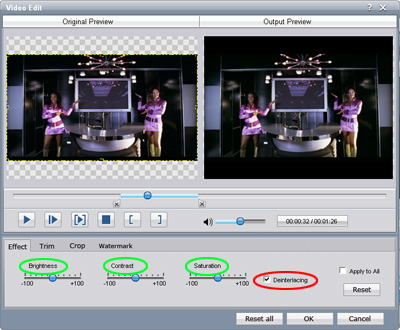
1. Click "Effect" to make special effect for your movie.
You can adjust the "Brightness", "Contrast", "Saturation" and also you can use "deinterlacing" to improve you output effect.

effect

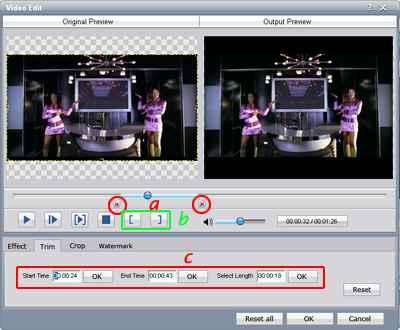
2. Trim:
"Trim" function allows you to pick up any part of your video to convert. You can just convert a part of your video that you want.

trim

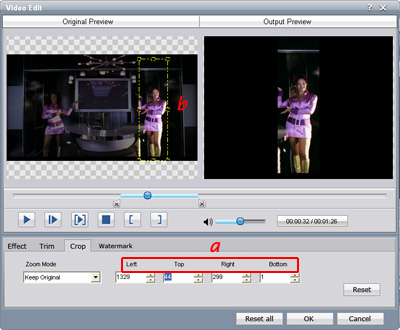
3: Crop:
Cut off the black edges of the original movie video and watch in full screen on your iPod using the "Crop" function.

crop

Step 4: Conversion
After you have done all the steps above you can click "Start" button to start your conversion.

Part 2: How to convert TS video

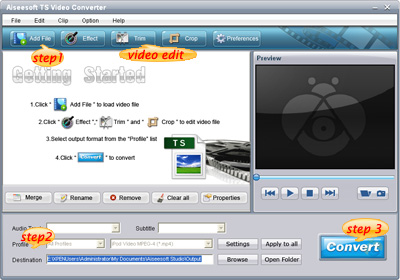
TS video converter

Step 1: Load Video
Click "Add File" to load the video that you want to convert.

Step 2: Choose Your Output Profile and Settings
From "Profile" drop-down list you can choose your output profile according to your need.
You can also click "setteing" adjust the settings of your output video, such as "video/audio encoder", "Video/audio Bitrate", "Channels", "Resolution" and so on..

Step 3: Conversion
After you have done all the steps above you can click "Start" button to start your conversion.

Tips: Video Editing
This powerful TS Converter allows you to do many video editings.
1. Click "Effect" to make special effect for your movie.
You can adjust the "Brightness", "Contrast", "Saturation" and also you can use "deinterlacing" to improve you output effect.
2. Trim:
"Trim" function allows you to pick up any part of your video to convert. You can just convert a part of your video that you want.
3: Crop:
Cut off the black edges of the original movie video and watch in full screen on your iPod using the "Crop" function.

Part 3: How to convert M2TS video

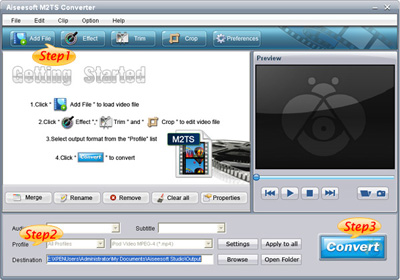
M2TS converter

Step 1: Add File
Load your M2TS video.

Step 2: Choose Profile and Settings
Select your output profile according your need and adjust the settings of your output video if you like.
(the default setting works well)

Step 3: Start Conversion
Click "Start" to begin your conversion.

2010年8月10日星期二

Best 5 MP3 players

There's no one-size-fits-all MP3 player that's perfect for everybody. Some people need a small MP3 player for the gym, while others need tablet-size players with wide-screen video playback. Whatever your interests are, these five MP3 players broadly represent our current favorite portable music gadgets. If you're looking for your first MP3 player and you want to start at square one, then take a look at CNET's MP3 player buying guide.

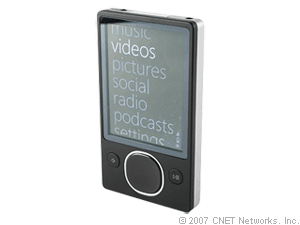
Zune (second generation, 80GB, black)

Zune (second generation, 80GB, black)

The second-generation, 80GB Zune from Microsoft offers tremendous value for the money, as well as innovative features such as wireless sync, RBDS FM radio information, Wi-Fi music sharing, and subscription music support (Zune Pass). We know the Zune name was dragged through the mud last year, but the second-generation Zune 80 does not disappoint.
Price: $237.49 - $249.99
Filed in: Best 5 MP3 players.

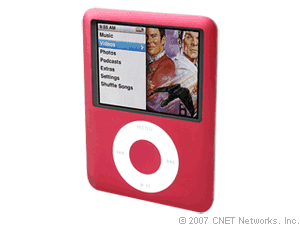
Apple iPod Nano (third generation, 8GB, red)

Apple iPod Nano (third generation, 8GB, red)

The latest version of the Nano is no longer the feature-crippled cousin to the iPod. Now in its third generation, the iPod Nano delivers every feature found on the iPod Classic, only in an exceptionally smaller and thinner format. The Nano's best assets are its crisp screen, attractive interface, sturdy and lightweight design, as well as a rechargeable battery that can play music continuously for as many as 24 hours.
Price: $199.00 - $199.00
Filed in: Best 5 MP3 players

Archos 605 WiFi (30GB)

Archos 605 WiFi (30GB)

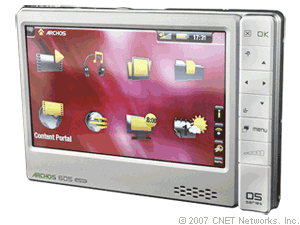
If you're looking for an MP3 player that also makes for a fantastic portable video player, the Archos 605 WiFi is one of the most advanced gadgets around. With it's touch screen interface, gorgeous high-resolution screen, and integrated wireless video and music downloads, the Archos 605 WiFi is one of the best portable distractions money can buy. If you frequently find yourself on the road or in the air with nothing to do, consider the 605 a must-have.
Price:$259.00 - $299.99
Filed in: Best 5 MP3 players

Creative Zen V Plus (4GB, black)

Creative Zen V Plus (4GB, black)

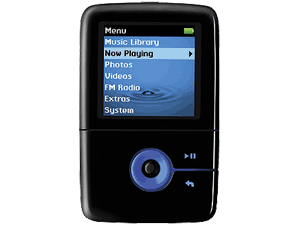
One of the first flash-memory players to break into the 16GB range, the Creative Zen V Plus packs a monster wallop into an ultracompact space, and the vivid OLED display is viewable from any angle. Features include an FM radio, voice and line-in recording, photo and video playback, and compatibility with subscription WMA tracks.
Price: $99.99 - $149.77
Filed in: Best 5 MP3 players

iRiver Clix (4GB, second generation)

iRiver Clix (4GB, second generation)

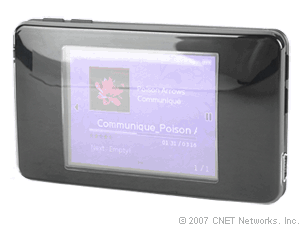
The iRiver Clix is the perfect slim and sleek MP3 player for those who find the iPod Nano too stifling, but the Toshiba Gigabeat too bulky. This player comes packed with extras such as an FM radio; a voice recorder; an alarm clock; support for subscription content as well as OGG and Audible files; and photo, video, and text viewing. The Clix includes SRS Wow sound effects, it has good battery life, and it's priced competitively.
Price: $150.95 - $168.99
Filed in: Best 5 MP3 players.

Recommended Products
Audio Converter for Mac
Convert video to MP3, convert audio to any audio format. Aiseesoft Audio Converter for Mac is a program designed just for Mac OS X
Audio Converter for Windows
Convert video, audio to MP3, M4A, WAV, AAC, AC3, and WMA etc. And these audio files can be played on all kinds of different MP3 players and audio players.

2010年8月9日星期一

It’s Modern Trade: Web Users Get as Much as They Give

If you surf the web, congratulations! You are part of the information economy. Data gleaned from your communications and transactions grease the gears of modern commerce. Not everyone is celebrating, of course. Many people are concerned and dismayed—even shocked—when they learn that “their” data are fuel for the World Wide Web.
Who is gathering the information? What are they doing with it? How might this harm me? How do I stop it?

These are all good questions. But rather than indulging the natural reaction to say “stop,” people should get smart and learn how to control personal information. There are plenty of options and tools people can use to protect privacy—and a certain obligation to use them. Data about you are not “yours” if you don’t do anything to control them. Meanwhile, learning about the information economy can make clear its many benefits.

Read the rest of this post on the original site

2010年8月8日星期日

Market Data Firm Spots the Tracks of Bizarre Robot Traders

Mysterious and possibly nefarious trading algorithms are operating every minute of every day in the nation’s stock exchanges.

What they do doesn’t show up in Google Finance, let alone in the pages of the Wall Street Journal. No one really knows how they operate or why. But over the past few weeks, Nanex, a data services firm has dragged some of the odder algorithm specimens into the light.

Read the rest of this post on the original site »

2010年8月6日星期五

Why the San Fran Chronicle Is Running Demand Media Content

Two Hearst newspapers’ websites have gone live with new sections from Demand Media, one of the content-generation companies that tap thousands of freelancers to generate countless articles.

Some observers argue that these so-called content farms are winning web traffic and ad revenue away from traditional publishers without matching the quality that traditional newsrooms provide.

Read the rest of this post on the original site

2010年8月4日星期三

How to use Mac TS converter to convert TS to MP4, MOV, etc on Mac OS X

What is TS?
Transport stream(TS, TP, MPEG-TS, or M2T) is a communications protocol for audio, video, and data which is specified in MPEG-2 Part 1, Systems (ISO/IEC standard 13818-1). Its design goal is to allow multiplexing of digital video and audio and to synchronize the output. Transport stream offers features for error correction for transportation over unreliable media, and is used in broadcast applications such as DVB and ATSC. It is contrasted with program stream, designed for more reliable media such as DVDs.
TS format is a container format that encapsulates pocketsize elementary streams and other data.
Important elements of a transport stream: Packet, PID, Programs, Program Specific Information (PSI) , 1 PAT , PMT , PCR , Null packets

How to play TS files on Mac?
You need media player to play TS files on Mac OS X:
VLC media player is a highly portable multimedia player for various audio and video formats (MPEG-1, MPEG-2, MPEG-4, DivX, mp3, ogg, ...) as well as DVDs, VCDs, and various streaming protocols. It can also be used as a server to stream in unicast or multicast in IPv4 or IPv6 on a high-bandwidth network. It supports Mac, linux, Windows.
How to convert TS to MP4, AVI,MOV, etc on Mac?
You need a video converter for Mac to convert TS to MP4, AVI, MOV, etc on Mac. Then you can put them on iPod, iPhone, PSP, Xbox 360, iMove, other potable players.
Step 1: Download TS Video Converter for Mac:
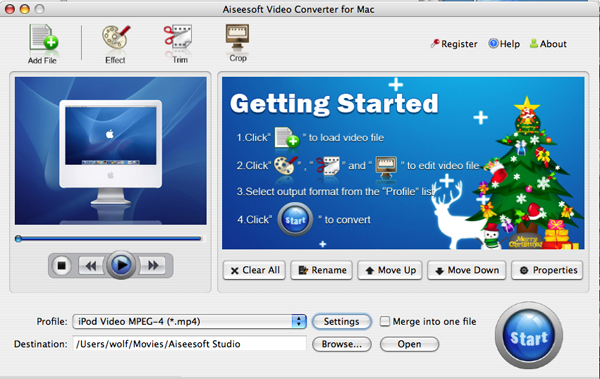
We recommend you Aiseesoft Video Converter for Mac which can convert TS to MP4, Convert TS to AVI perfectly. This Mac TS Video Converter also can extract audio from TS and Convert to MP3, M4A, etc. Compared with other video converters, this TS video converter for Mac provides you with better output quality, more advanced functions and higher conversion speed. You can download free trial Version here: for Mac intel users, for Mac PowerPC users. Then install and run this program. The trial version should be fully functional for what you want to do.
Step 2: Load the TS files you want to convert

Video Converter for Mac

Click the "Add File" button to browse your computer hard disc and add the .TS files you want to convert to the program.
Step 3: Output Settings
After you added TS files, you can select an output format for each video file and specify a directory on your computer to save the output files.
The TS Converter for Mac supports comprehensive video formats including AVI, MPEG, WMV, MP4, XviD, 3GP, FLV, etc.
If you don't know what formats your device supports, you can just select the format according to the device name. Of course, if you don't want to use the default video and audio encoding settings, just click the "Settings" button to customize these settings.

Video Converter for Mac - settings

Step 4: Edit your TS files
This TS Video Converter for Mac set video brightness, contrast, saturation, crop video, trim video/audio and even merge multiple files into one file.

Step 5: Start the conversion
Click the Convert button to start conversion and then you can just go out for a walk or take a nap, and the conversion may have been finished when you come back: )

Modifications of transport stream specification for random-access media (M2TS)
Transport Stream was designed for tape and broadcast, but it required modifications for usage with random-access media devices like new generation of digital camcorders that record onto DVD disks, hard drives or solid-state memory cards.
Random-access based systems may save data packets into a temporary buffer if a storage device is not ready, for example on device startup. Packets are written out of order, and to keep track of them, a 4-byte timecode (TC) is added to standard 188-byte packets. The result is a 192-byte packet. This is what is informally called M2TS stream. Sony calls it "BDAV MPEG-2 transport stream". JVC calls it TOD (possibly an abbreviation for "Transport stream on media") when used in HDD-based camcorders like GZ-HD7.[9] M2TS transport stream is also used for AVCHD video files, which often have MTS extension.

2010年8月3日星期二

How to change iPhone Wallpaper

Here are the easy steps you can take to change iPhone Wallpaper easily.

Make preparations:
Step 1: Find an image that you would like to use as wallpaper from iPhone Wallpaper.
Step 2: Right-click on a PC or control-click on an Apple computer and select "Save As" to save the image to your computer. Save it to your "My Pictures" folder or iPhoto library on a PC or Apple respectively, or wherever you prefer to store your images on your computer as long as you will be able to easily locate it.
Step 3: Connect the iPhone to your computer with the USB cable and wait for iTunes to launch itself automatically. Click on the "Photos" tab in the side panel.
Step 4: Click on the "Sync Photos From:" tab in the "Photos" menu on iTunes and locate the folder where your photos are stored. Select all of the images that you would like to transfer your to iPhone. Click on "Sync" in iTunes to transfer all of the photos to your iPhone.

Change iPhone Wallpaper
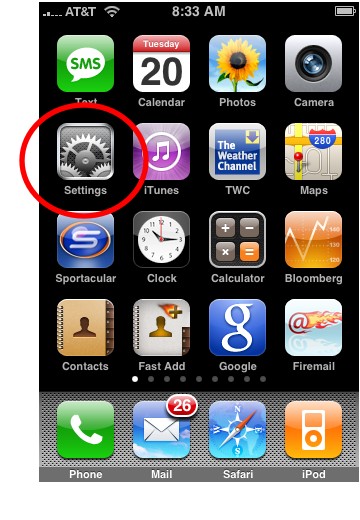
Step 1: Tap Settings on the iPhone’s home screen:

Change iPhone Wallpaper

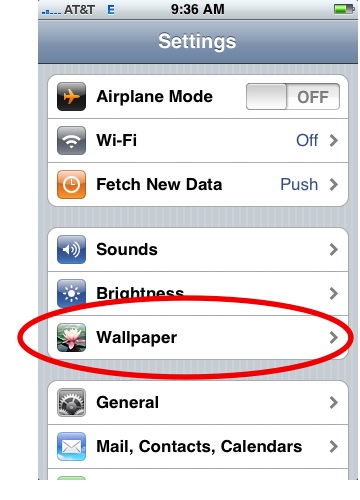
Step 2: Tap the Wallpaper tab:

Wallpaper Tab in iPhone Settings

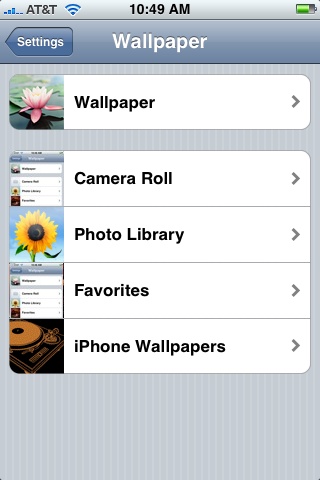
Several tabs should appear, including one that says Wallpaper. You can tap any of the tabs to select wallpaper for the iPhone. The Wallpaper tab features a collection of pictures supplied by Apple. The other tabs feature pictures you have added to the iPhone, including those taken with the iPhone’s camera.

Wallpaper Selections

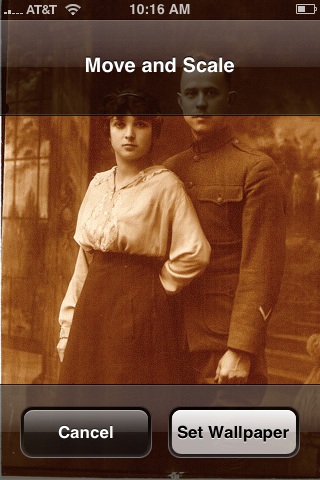
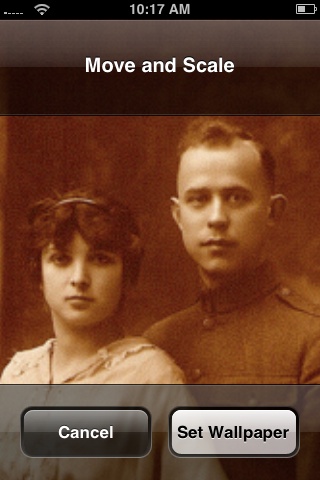
Step 3: Tap any picture. A preview screen of the wallpaper will appear, along with the words Move and Scale at the top. You can pinch and reverse pinch the picture to resize. The transparent bars at the top and bottom simulate the bars for the clock and Slide to unlock that will eventually display on top of your wallpaper.
In the example below you can see that the heads of the two peoples will be partially covered by the top bar:

Resize iPhone Wallpaper

To fix, I will reverse pinch to expand the picture, then drag the picture so that their faces appear in the center:

Resize iPhone Wallpaper
Step 4:
Tap Set Wallpaper to finish.
To view your new iPhone wallpaper, put the iPhone to sleep by pressing the sleep button on the top of the iPhone. Then hit the home button to wake the iPhone, and you should see the wallpaper.
Note the position of the clock and Slide to unlock transparent bars. If you’re unhappy with the position of the wallpaper, repeat the steps above.

2010年8月2日星期一

iPAQ converter - convert mpeg mp4 wmv avi to ipaq, rip dvd to ipaq

The tutorial includes two parts. The part 1 will show you how to convert mpeg mp4 wmv flv 3gp avi to iPAQ video step by step with Aiseesoft Total Video Converter. And the part 2 will show you how to convert dvd movie to iPAQ video step by step with Aiseesoft DVD Ripper. The detailed steps are as follows:

Part1. how to convert mpeg mp4 wmv flv 3gp avi to iPAQ video?
Aiseesoft Total Video Converter is a powerful iPAQ video converter which can convert various video formats including AVI, Divx, XviD, WMV, MPEG, MPG, FLV(YouTube video), RM, RMVB, TOD, MOD, ASF, H.264, etc to iPAQ video. And it is a video joiner, and video editor for you to convert video files to the formats you want, so you can enjoy you movie on all common digital players like iPod, Zune, iPhone, Apple TV, PSP, Xbox 360, PS3, Archos, iRiver, Creative Zen, PMP, Smart Phone, Pocket PC, PDA, Mobile Phone, etc.

Here's the tutorial about how to convert mpeg mp4 wmv flv 3gp avi to iPAQ video with Aiseesoft Total Video Converter

Step1 Free to Download Aiseesoft Total Video Converter and install it.

Step2 Click the "Add File" button to import your videos. If you experience any problems adding videos by directly clicking the "Add File" button, you can click "File -> Add File" to add the video files you want to convert from your computer.

Aiseesoft Total Video Converter

Step3 This software can convert video to various video formats for PMP, Xbox 360, iPod, PSP, Zune, cell phone, etc. Click the "Profile" drop-down list to select the format "HP iPAQ Video(*.wmv)"

Total Video Converter - profile

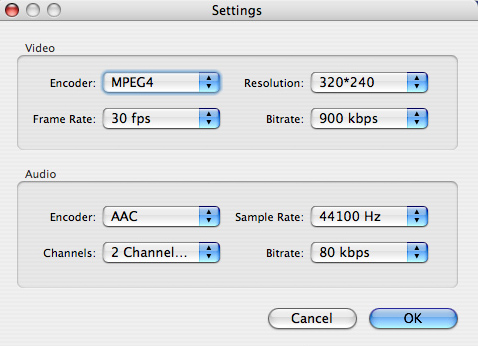
Step4 If you want to customize the output quality, click the "Settings" button to open the Settings panel, where you can set resolution, frame rate, video bit rate, audio bit rate, sample, etc.

Total Video Converter - settings

Step5 Click the "Browse" button to specify a location on your computer to save the converted movie. If you want to open the output folder, you can just click the button "Open Folder". If you want to merge the added video files into one file, check the option "Merge into one file". By default, the the merged file is named after the first selected file.

Step6 When you get ready to convert the added video files, click the “Start” button to start conversion.

Part 2. how to convert dvd movie to iPAQ video?
Aiseesoft DVD Ripper is all-in-one, super fast DVD ripper software. The best DVD ripper can rip DVD movies to all popular video and audio formats. And it let you easily copy DVD movie to iPAQ video, iPod Video, Zune, iPhone, Apple TV, PSP, Xbox 360, PS3, Archos, iRiver, Creative Zen, PMP, MP4/MP3 Player, Smart Phone, Pocket PC, PDA, Mobile Phone, etc.

Step1. Download Aiseesoft DVD Ripper and install it.

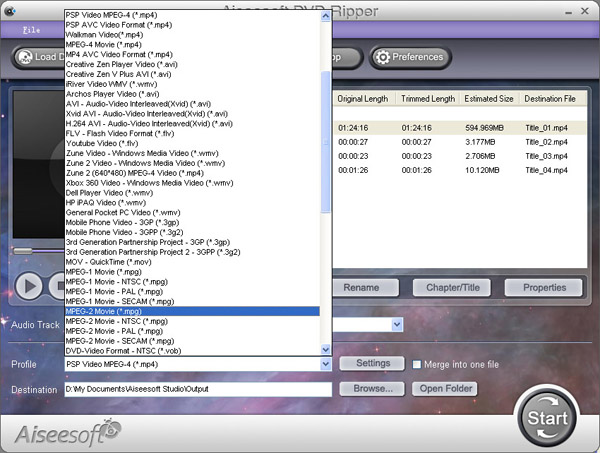
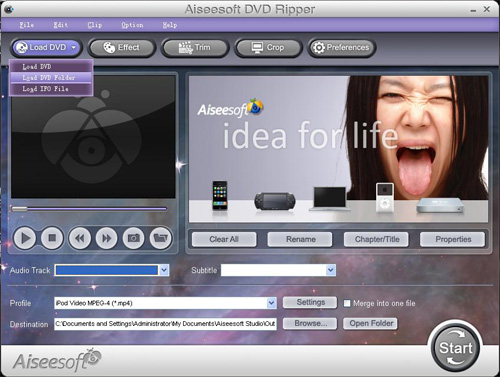
Step2. Insert your DVD disc into your DVD-Rom, then run the software, click "Load DVD" button and add the DVD file. You can also add DVD/IFO from your hard disk by clicking "Load IFO File".

DVD Ripper

Step3. This software can convert DVD to various video formats such as MPEG-4, AVI, WMV, FLV, 3GP, VOB, etc. Click the "Profile" drop-down list to select the format "HP iPAQ Video(*.wmv)".

DVD Ripper - profile

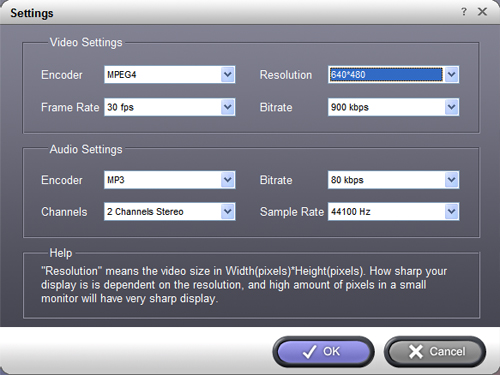
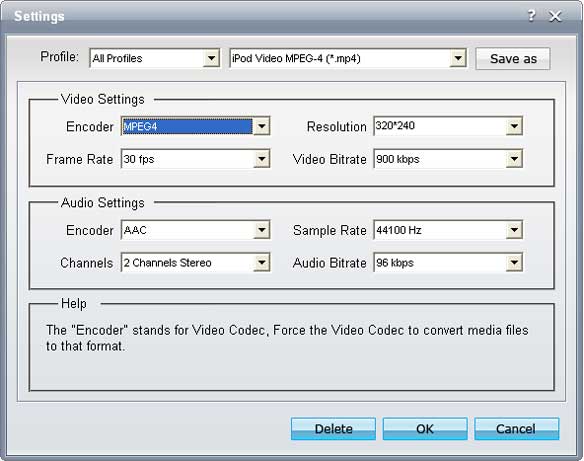
If you want to customize the output video, you can click the "Settings" button next to the format field to open the Settings window and set video resolution, frame rate, bit rate, encoder, etc. See the figure below:

DVD Ripper - settings

Step4. Select Subtitle and Audio
Regular DVD movies usually have several subtitles such as English, French, German, etc. You can select one you prefer. You can also delete the subtitle by selecting "No Subtitle", Selecting Audio is the same.

Step5. After the above steps, click "Start" to start conversion.

2010年8月1日星期日

Wonder If RIM’s Blackpad Will Have a Roller Ball App

Does RIM really have a tablet in the works? “Two people familiar with the company’s plans” tell Bloomberg that it does and plans to launch it in November just in time for the annual holiday spending binge. The device will likely be called “Blackpad”, which is better than Flatberry, I suppose–but not much. And it will be about the same size as Apple’s iPad. It will support Wi-Fi and Bluetooth, but not 3G, and is rumored to be outfitted with cameras for videoconferencing. Pricing will be competitive with that of the iPad. Which is wise, if the same thing can be said of the device itself.

And that’s a big if, as I’ve noted here before: “With the iPad, Apple (AAPL) has shown us that success in the burgeoning tablet market requires good design, a robust OS and a vibrant app platform. And at this point, RIM (RIMM) doesn’t really have these things. The BlackBerry OS might be great for email-focused handsets, but will it translate well to a larger slate form factor? That doesn’t seem likely, though one never knows.”