2010年6月29日星期二

Turning a Web Page Into a Keeper

There are several existing products that offer to organize digital data in one central place. Among them are Evernote and Springpad, which save a greater variety of content (documents, emails, reminder memos and voicemails as well as some Web-page data) in various places. ICyte focuses specifically on saving Web-page content.

Sharing Research

It encourages people to share Web research with others by inviting them to join a project (iCyte’s term for a collection of Web pages saved on its server), comment on the content and share notes with one another.

For the most part, I liked using iCyte. I created a free account and made several projects filled with “Cytes” (saved Web pages), naming projects according to what they contained, like Tech Stuff and To Read, where I saved a bunch of online articles I wanted to read but didn’t have time to finish. I also used it to create a project with a friend called Silly News, where we shared news articles and Web pages with videos on them in a common space and commented on each other’s pages. People who want to participate in sharing and commenting on iCyte must also create accounts for themselves. ICyte is currently limited to browsers—whether on computers or on smartphones—though the company is considering making an iPhone app.

Once the iCyte add-on is downloaded onto a Windows PC or Mac for use in Internet Explorer or Firefox, two tiny icons that look like an eye and a list appear unobtrusively to the side of the browser’s address bar. When the eye icon is selected, it saves the opened Web page into a new or existing project and lets you add details like notes and word tags.

To save a highlighted section of a page, just highlight it with your cursor before hitting the eye icon, and that text will appear highlighted in the saved Cyte. By selecting the icon that looks like a list, users can open or close a left-side panel displaying a list of all saved Cytes. At the top of this list, and from the iCyte.com home page, a search box lets users comb through all public Cytes or just their own for specific terms.

mossberg2

With a click on the iCyte icon, Web pages—with highlighted text—can be saved as they originally appeared.
Viewing Cytes

Though the ability to highlight and save Cytes only works with the Internet Explorer and Firefox browsers, users can log into their iCyte accounts and see their saved or shared content using any browser. I did this using Chrome and Safari browsers on Windows PCs and Macs, and I also accessed my iCyte account on an iPad with its Safari browser.

By default, Cytes are saved as private projects, visible only to their creators. But in one step this privacy setting can be changed so the Cyte is shared publicly for the iCyte community to view and comment on. I browsed several public Cytes and found a few that I chose to save to my own account for reading, like an art history Cyte one user saved from a Metropolitan Museum of Art’s Web page.

Blue Bar Feature

Each Cyte has a blue bar across its top that shows who originally saved it and on what date. The blue bar also tells you whether you’re viewing the page with marked highlight on or off. A button lets you view the page in a live view, which may or may not be the same as what was saved depending if highlights were made, if the page has changed, or if more content has been added to it—like new reader comments on a blog post.

I found it easy to share Cytes with friends using a variety of methods, and a single Cyte can be shared from a private project without allowing someone access to the other Cytes saved in the project. I shared Cytes via Facebook and email, though links to Cytes can be shared in other ways like on Twitter, Digg, StumbleUpon and MySpace—or by using a shortcut to embed the link on a Web site or blog.

The Highlights

I didn’t use the highlighting feature much, but I could see it being a real boon for people doing research and saving Web pages for specific content. Also, by highlighting text before sharing Cytes with others, users can more specifically point out what they like or find useful in a particular article or Web page.

The version of iCyte that I used is free and a company representative said each user’s profile information is kept private and not shared with third parties. ICyte doesn’t currently include built-in advertisements; instead, the company plans to roll out subscription-based Enterprise and Pro versions. The Enterprise version costs $195 a year and the Pro version is still in the works.

If you use the Web as a research resource or simply like saving articles, videos and other online materials, iCyte could be a great tool for organizing and sharing all of that content.

Facebook Picks Up Key Chrome Engineer, VMware Vet

Facebook’s headhunters have returned to camp bearing two more trophies. The social network said today it had hired Matt Papakipos, the Google engineering director who oversaw both the Chrome OS project and the Chrome WebGL GPU hardware project for hardware-accelerated graphics, and Jocelyn Goldfein, a seven-year VMware veteran and vice president.

2010年6月27日星期日

Why Amazon Should Give Away Kindle Free

From the moment the splashy elegance of the iPad first adorned the de rigueur giant video wall behind the Orwellian figure of Steve Jobs a few months ago, you just knew the Kindle was dead.

Read the rest of this post on the original site

2010年6月25日星期五

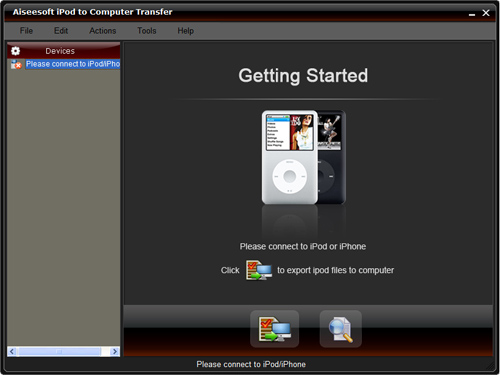
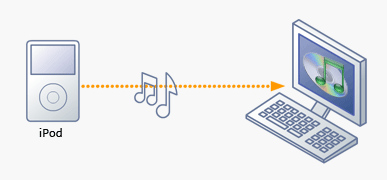
How to transfer music from iPod

Basically, there is a need for you to transfer music from iPod with iPod Rip and iPod Rip for Mac to avoid your files are lost. Now, I guide you how to Rip your iPod to hard drives with Aiseesoft iPod to Computer Transfer. So you don’t need to worry about losing anything.

iPod Rip to Computer

Step 1: Download Aiseesoft iPod to Computer Transfer and install.

iPod Rip

Step 2: Launch the program
Double-click the icon to run the software; or launch it from the “Start” Menu.
Step 3: Rip iPod files.
1) Run the software, and connect your iPod/iPhone to your computer via USB cable. After done, the iPod/iPhone icon and its library and playlists will appear in the Device list.
2) Open the library/playlist that you want to export files, and then check the music/movie you want to export in the file list to your computer.
3) Click the "Export to PC" button to select the destination of the exporting files and start ripping files

Otherwise, you could also choose the Export to local option from the Actions menu, and then export the files from your iPod/iPhone to actual device.

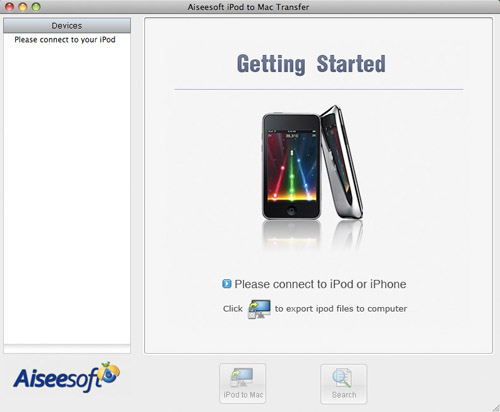
Tip: Use “Track filter” function to help you quickly browse your library by genre, artist and album. If you are using Mac, please use the iPod Rip for Mac software.
iPod Rip for Mac download.

iPod  Rip Mac

How to import video from camcorder to Mac

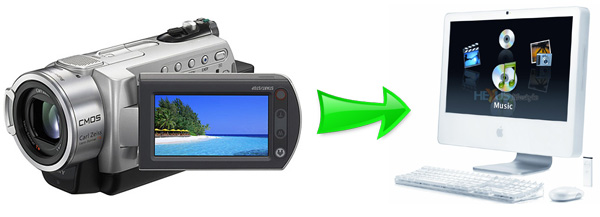
You may be ready to make a movie after you capture great footage with your FireWire camcorder. In this condition, you need import your camcorder to your Mac. More specially, you need to connect your camcorder to your Mac, and then copy footage from the camcorder into iMovie. And when you import video into an iMovie project, it would divide your video into individual clips for the easy editing.

camcorder video to Mac

Part 1. How to Import Video from a Camcorder to your Mac
Step 1: Connect camcorder to your Mac computer with cable (USB/Wifi)
Step 2: Select mode of camcorder such as PC/Computer mode.
Step 3: iMovie will automatic open Import window.
Step 4: If DVD Player automatic open. just quit DVD Player first.
Step 5: So now, you can review your video or select "Import All"(make sure your switch is set to "Automatic").
Step 6: If you select "Manual", you can import some clip to iMovie
Step 7: If you import from Tape based device (DV/HDV), iMovie will automatic revise tape and import all
Step 8: iMovie automatic create thumbnail video after complete import

Part 2. Tips:
iMovie automatically detects your camcorder
iMovie will automatically detect when you have a FireWire camcorder connected. If you see the message No Camera Attached, make sure your camera is turned on and properly plugged in to your computer via a FireWire cable and that your camcorder is set to VCR, VTR, or Play mode. You can also click the Connection Help button for more suggestions.
iMovie supports different video formats
When you create your project, choose the appropriate video format depending on your needs. For importing video from your camcorder, choose between DV, DV Widescreen, HDV 1080i, and HDV 720i. For recording from your iSight, select iSight. If you will be copying MPEG-4 files from your PDA or phone, select MPEG-4.
Import directly to the iMovie timeline
You can import footage directly from your camcorder to the iMovie timeline rather than to the Clips pane. This is a quick and easy way to get your footage into your iMovie project. You can then edit right in the timeline. From the iMovie menu, choose Preferences, click Import, and then choose the option Place clips in Movie Timeline.
If you're importing video that is already edited
Instead of importing your video as separate clips, you can set iMovie to import your video as a single clip. This may be useful if you're importing a movie that you've already edited and you just want to change a small portion. From the iMovie menu, choose Preferences, click Import, and then deselect the "Start a new clip at each scene break" option. If you prefer, select "Limit scene length to" and set a limit for the number of minutes. This will ensure your imported files don't get too large, in case you'll be copying clips between iMovie projects.
What you need to make a high-definition video with iMovie
High definition video is quickly becoming the format you see broadcast on TV. An HD camcorder stores more pixels than a standard camcorder, letting you see more detail in your video footage. iMovie supports importing and editing video from HD camcorders (HDV 720p and 1080i), so you can make movies just like the pros-and it's a great way to archive your most precious life events in the highest resolution possible .
Using video from an MPEG-4 camera
Many digital still cameras, PDAs, and mobile phones let you record short videos in the MPEG-4 format, a standard compression that is used to significantly reduce the file size of video. While iMovie doesn't know how to import video from these devices directly, as it does with FireWire devices, you can still use the MPEG-4 files once you've copied them to your Mac. Just drag them into the iMovie Clips pane using the Finder or import them using Import from the File menu.
Monitor the remaining amount of hard disk space
Digital video clips use a large amount of hard disk space. For example, five minutes of DV footage uses approximately 1GB of space. The same amount of HD video can occupy between 2GB to 4GB, depending on the format and footage. To save hard disk space, import and edit your video in sections instead of trying to do so all at once. You can see how much space remains on your hard disk by using the monitor located in the lower-right corner of the iMovie window.
Using video from your connected or built-in iSight camera
You can record video directly into your iMovie project with your iSight camera. That’s to say, you can add clips to your project spontaneously while you're working on it. Just connect your iSight camera to the FireWire port of your Mac and you're ready to start recording. If you have more then one camcorder connected, such as a camcorder and an iSight,- or you have an iMac with a built-in iSight-choose iSight from the pop-up menu that appears when you switch to camera mode.

2010年6月22日星期二

How to convert MTS/M2TS video

MTS or M2TS format is the equivalent of h.264 or MPEG-4 AVC. It is a fairly new High Definition codec that provides greater compression than the regular MP4 and others. Those two High Definition format always be used on HD Camcorder, such as Sony, Canon or Panasonic.

As they are HD video, most of our video editor such as windows movie maker can not edit it directly. And also you can not upload it to youtube.com and share with your friends.

So you need to convert them into normal video format, such as wmv, mp4, avi and so on.

Here I know a really powerful MTS Converter and M2TS Converter
And the process of operation is really easy and fast.

Part 1: How to convert MTS video
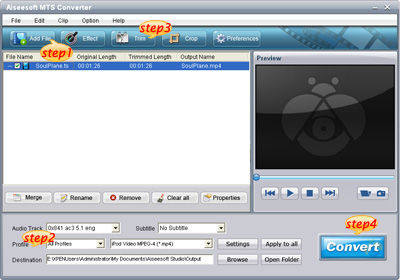
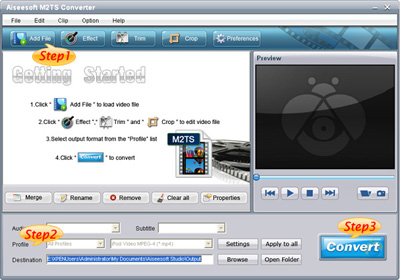
Step 1: Load Video
Click "Add File" to load the video that you want.

MTS converter

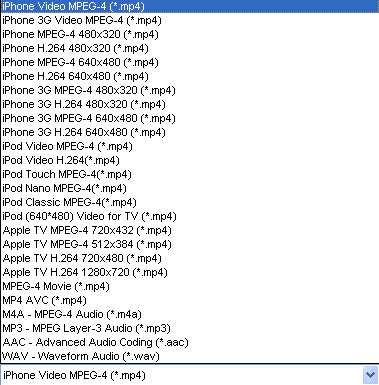
Step 2: Choose Your Output Profile and Settings
From "Profile" drop-down list you can choose your output profile according to your need.
For example, if you have a iPod and you want to convert video for it, you need to choose "iPod" from the profile list and then it also provides the second chance to specify your iPod generation.
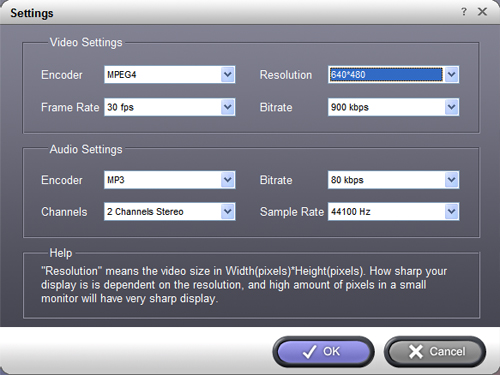
You can also click "setting" adjust the settings of your output video, such as "video/audio encoder", "Video/audio Bitrate", "Channels", "Resolution" and so on..

Step 3: Conversion
After you have done all the steps above you can click "Start" button to start your conversion.

Part 2: How to convert M2TS video

M2TS converter

Step 1: Add File
Load your M2TS video.

Step 2: Choose Profile and Settings
Select your output profile according your need and adjust the settings of your output video if you like.
(the default setting works well)

Step 3: Start Conversion
Click "Start" to begin your conversion.

Here I also recommend you a really nice HD Video Converter, which can convert HD TS, HD MTS, HD M2TS, HD MPEG, HD WMV, HD MPG, HD MP4, QuickTime HD MOV, HD H.264, HD RM video, etc

Racing to Fill Gaps Left by Google

The race to build a successor to Web search is heating up as a number of young companies seek to fill gaps they see with Google Inc. (GOOG).

One of the hopefuls, Quora Inc., launched to the public Monday evening after months of private testing. The Palo Alto, Calif., company, co-founded by two early Facebook Inc. engineers, wants to collect and organize information people have in their heads but that may not be available online, such as background on the inner workings of a company and advice on how to get a reservation at an exclusive restaurant.

The service allows people to pose and answer questions–working behind the scenes to route questions to the users who can best answer them. People must use their real name on the site, and register by connecting their Quora accounts with a Facebook or Twitter account, which helps Quora connect them to people they know using the service.

“It really seems like a big opportunity to get all this stuff that isn’t on the Web onto the Web,” said Quora co-founder Charlie Cheever, who started the company with partner Adam D’Angelo in April 2009.

Read the rest of this post on the original site

2010年6月20日星期日

Let’s Subsidize Open Broadband, Not Journalists

In 1791, James Madison penned a short essay that foretold a long, and ongoing, financial involvement by government in journalism. Madison said, in part:

“Whatever facilitates a general intercourse of sentiments, as good roads, domestic commerce, a free press, and particularly a circulation of newspapers through the entire body of the people, and Representatives going from, and returning among every part of them, is equivalent to a contraction of territorial limits, and is favorable to liberty, where these may be too extensive.”

Read the rest of this post on the original site

Fiber Networks Go on the Block

A decade ago, dozens of companies rushed to build fiber-optic networks, envisioning a new era of high-speed telecommunications. They overbuilt, triggering a string of bankruptcies and wasting billions.

Now, amid a surge in broadband Internet use, demand is finally catching up with supply. At least three privately owned operators of fiber-optic networks have put themselves on the block in recent weeks, hoping to fetch hefty prices.

Those companies, according to people familiar with the matter, are KDL Inc., of Evansville, Ind., a provider of fiber networks in 26 states; Houston-based Alpheus Communications, which builds and manages the fiber backbone that links major cities in Texas; and Fibertech Networks LLC, which leases fiber networks to banks, colleges and hospitals in the eastern U.S.

All three have hired investment bankers, and are hoping to attract bids that value them at around 10 times earnings before interest, taxes, depreciation and amortization, people familiar with the matter said.

Read the rest of this post on the original site

2010年6月18日星期五

How to convert DVD, Movie, Music to iPhone ringtone and put ringtone on iPhone, iPhone 3G

Everyone wants his iPhone ringtone to be personalized,and sometimes want to make iPhone ringtone from a clip of their favorite DVD, movie or songs. Here I found a easy way to achieve this target for iPhone ringtone, hope it helpful.

The tools you need are Aiseesoft DVD to iPhone Suite and iPhone PC Suite (free), download links are as following:
Aiseesoft iPhone Converter Suite:
http://www.aiseesoft.com/downloads/dvd-to-iphone-suite.exe

iPhone PC Suite (Totally free)
http://www.free-codecs.com/download/iPhone_PC_Suite.htm

Note: iPhone PC Suite has to run under Microsoft .NET Framework, you can download it from: http://www.microsoft.com/downloads/details.aspx?FamilyID=333325fd-ae52-4e35-b531-508d977d32a6&DisplayLang=en

The iPhone ringtone guide is composed of 3 parts:
1. How to extract audio to ringtone from DVD?
2. How convert audio and video to iPhone ringtone?
3. How to sync/ put ringtone to iPhone without iTunes

Part 1 How to make iPhone ringtone from DVD?
Install Aiseesoft DVD to iPhone Suite and run it. For Windows Vista user, you may have to run this program as Administrator, right click the program shortcut and click “Run as Administrator”.
Run the DVD to iPhone Converter load your DVD by clicking “Load DVD” button, you also can load IFO file from your hard drive by clicking “Load IFO File” button.
Click drop down list and select iPhone supported format (AAC, MP3, WAV, etc.) you want:Convert DVD Movie to iPhone - format

You can also customize the sample rate, bit rate and other parameters of your iPhone ringtone by click “setting”

Convert  DVD movie to iPhone - settings

To extract a clip from DVD to iPhone ringtone, you can click button “trim”, set the start time and end time.

Convert DVD  movie to iPhone - trim

Then click “Start” to extract iPhone ringtone from you DVD, Done.

Part 2 How to make iPhone ringtone from videos and songs?
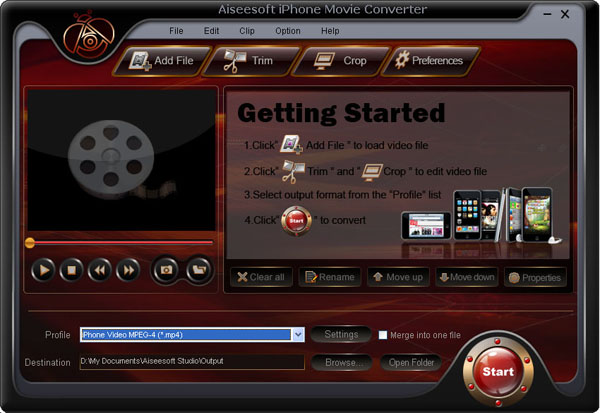
Start Aiseesoft iPhone Movie Converter, then click “Add” button to load video file which you want to extract iPhone ringtone from(You can also load audio file to convert music to iPhone ringtone).

iPhone Movie Converter


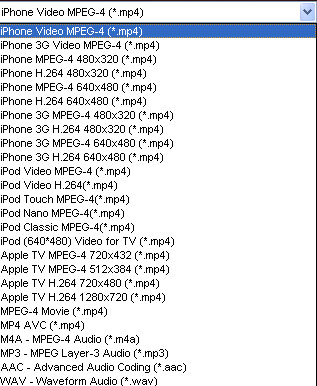
Click drop down list and select iPhone supported format (AAC, MP3, WAV, etc.) you want:

iPhone Movie Converter - output

The operation is similar as extracting iPhone audio from DVD with DVD to iPhone Converter, set sample rate, bit rate and other parameters of your iPhone ringtone by click “setting”

Most users’ iPhone ringtone are always short, so you may want to convert a clip from movie to set as ringtone. Click button “trim” to set the start and end point of your iPhone ringtone.

Then click “Start” to convert a clip to iPhone ringtone from your movies or songs.

Next part: How to sync/ put ringtone to iPhone/iPhone 3G without iTunes

Free Trial: Download Aiseesoft DVD to iPhone Suite

2010年6月16日星期三

How to compress DVD-9 to DVD-5 for Mac

We often use DVD to store video and data file. Varieties of DVDs are sorted by the way data stored.

DVD-9 holds 8.5GB and is supported by the DVD+R and DVD-R formats. It is also known as Single-Sided Double Layer (sometimes called Dual Layer). The official names are DVD-R DL and DVD+R DL.

DVD-5 holds 4.7GB and is supported by the DVD+R/RW and DVD-R/RW formats. It is also known as Single-Sided Single Layer.

If you want to compress Double Layer DVD-9 to Single Layer DVD-5 on Mac, you must use one Mac DVD Copy software. Download this Mac DVD Copy to have a try;

Buy NowFree trial(Intel PPC)


How to compress DVD-9 to DVD-5 for Mac

Insert your DVD and select the copy DVD mode

Select souce: Choose DVD-video disc from the source pop up menu.

Select target: From the “Target” pop up menu, select the DVD disc, and on the type of DVD disc, please select the disc type “D5(4.7GB)”(there are three types of DVD discs: D5(4.7GB) Disc, D9(8.5GB) Disc and customized disc.)

Start to compress DVD:Click “Start Copy” button to begin your DVD compressing.
learn more on: how to edit DVD file with DVD Copy for Mac.

2010年6月14日星期一

Three Ways to Download Music To Your Zune Player

There are several ways you can download your Zune movies, Zune music videos, Zune MP3's and Zune software to your Zune player.
1) The first is from the Microsoft Zune Marketplace and other Pay-Per-Download Sites which have movie downloads, music downloads, music video downloads, and more. The problem with downloading Zune files from places like Microsoft Zune Marketplace is the cost. The Microsoft Zune Marketplace charges a monthly subscription service called the "Zune Pass" with unlimited downloads for $14.99 per month. The pay-per-download sites charge on the average about $1.00 per Zune download. So, with a Zune player that has a 30 gigabyte hard drive whic allows users to store up to 7,500 Zune MP3s, 2,500 pictures or 100 hours of Zune movies and Zune music videos, that is going to cost a fortune to fill up.

2) WiFi - Microsoft Zune players has a technology called WiFi which allows friends and family to share Zune music, Zune movies, Zune software, pictures and Zune music videos both effortlessly and wirelessly. If you have a cool picture or something you found on a zune download site you can share it easily. Anytime you come in close range of another Zune player you can connect to that Zune player via WiFi and share your Zune downloads. The only drawback is you can only play a shared song only 3 times before it is deleted although, pictures are saved and can be viewed many times. It's a nice feature but needs improvement.

3) The third way is by ripping your music CD's to your Zune player. The definition of ripping means converting CD music files to a file format usable by your Zune player which is either in MP3 or WMA file format. After doing this, all you need to do is plug your Microsoft Zune player into your computer with a USB cable and transfer the ripped music files to your Zune player using the provided Zune software.

1. Put the music CD that you want ripped into your PC.
2. After the media player opens. Select the song you would like to copy and click on RIP.
3. Save the song you just ripped to a folder of your choice.
4. Plug in your Zune Player to your PC using the USB Cable. The Zune Software will automatically search for music that you saved in the folder on your PC. Select the files you want and manually drag and drop them into your Zune player's music folder.

Related theme:
New Zune review part 2-1
New Zune review part 2-2
New Zune review part 2-3
New Zune review part 2-4

Recommended Products:
DVD to Zune Converter
This Zune Converter can convert or rip DVD to what you want video/audio formats.
Zune Movie Converter
It supports convert video to Zune supporting video and audio format.

2010年6月13日星期日

Gawker Contacted by FBI in iPad Security Breach Probe

Gawker Media said Friday on its Valleywag blog that it has been contacted by the Federal Bureau of Investigation and was told to hold on to relevant documents related to a possible security breach of AT&T Inc.’s (T) website that exposed the email addresses of some owners of Apple Inc. (AAPL) iPad devices.

“We can confirm that Gawker Media was contacted by the FBI earlier today and issued a formal preservation notice,” Valleywag said in its post.

Gawker Media publicized the incident Wednesday after being contacted by a small group of computer experts calling itself Goatse Security. The group said it discovered the flaw, explaining that it was able to find the email addresses by guessing numbers that identify iPads connected to AT&T’s mobile network. The group said it uncovered 114,000 email addresses, including those of prominent officials in companies, politics and the military.

Read the rest of this post on the original site

2010年6月11日星期五

Who Killed the Iceman?

It sounds like the opening to a television forensics drama. On a sunny September day in 1991, a German couple hiking through the Alps make a gruesome discovery.

Initially, the corpse partially jutting out of the melting ice is thought to be from a recent mountaineering accident.

Read the rest of this post on the original site

2010年6月9日星期三

Apple Makes Good on Steve Jobs’s Promise, Invites Other Advertisers. But What About Google’s AdMob?

Last week, Steve Jobs promised that his iPhone and iPads would be open to outside ad networks. Yesterday, Apple made good on his promise, by changing the terms of its developer agreement. But the company may not have opened the door all the way.

Backstory: Apple’s original license agreement, released in April, appeared to effectively ban third-party ad networks from selling “in-app” ads on its gadgets by crippling their ability to track user data. In the absence of any clarification from Apple (AAPL), it seemed to me (and others) that the company was set on locking up its platform from advertising competition.

But last week at the D8 conference, Jobs either changed his stance or spelled it out, depending on your perspective: Apple wasn’t interested in banning rivals to its iAd platform, he said, it just wanted to cripple third-party analytics companies like Flurry.

And yesterday, Apple changed its legal language to reflect Jobs’s words. Here’s the revised language for section 3.3.9 of Apple’s developer agreement, concerning the use of data collection:

3.3.9 You and Your Applications may not collect, use, or disclose to any third party, user or device data without prior user consent, and then only under the following conditions:

- The collection, use or disclosure is necessary in order to provide a service or function that is directly relevant to the use of the Application. For example, without Apple’s prior written consent, You may not use third party analytics software in Your Application to collect and send device data to a third party for aggregation, processing, or analysis.

- The collection, use or disclosure is for the purpose of serving advertising to Your Application; is provided to an independent advertising service provider whose primary business is serving mobile ads (for example, an advertising service provider owned by or affiliated with a developer or distributor of mobile devices, mobile operating systems or development environments other than Apple would not qualify as independent); and the disclosure is limited to UDID, user location data, and other data specifically designated by Apple as available for advertising purposes.

If you compare and contrast to Apple’s earlier version, you’ll see the message is clear: It’s okay to collect user data to help sell ads–though you will need to get Apple’s permission to do so.

UPDATE: One important caveat here: It appears as if Apple may still be limiting its biggest potential rival–Google’s AdMob. Note the language about only allowing “independent” ad-serving companies to collect data: “For example, an advertising service provider owned by or affiliated with a developer or distributor of mobile devices, mobile operating systems or development environments other than Apple would not qualify as independent.”

Google (GOOG) certainly qualifies as a developer/distributor of mobile operating systems, right? The language also appears to disqualify potential rivals–if, for instance, Microsoft (MSFT) tried entering the mobile display market. I’ve asked Apple for comment, but I’m not expecting any.

Meantime, Apple’s language does appear to be good news for smaller competitors like Greystripe, Millenial Media and Medialets–though it may make them less attractive to potential acquirers

2010年6月8日星期二

How to reformat an iPod

This is a tutorial about how to reformat Windows Formatted iPod for Mac and how to reformat Mac Formatted iPod for Windows. There are 2 parts:
Part 1. How to reformat Windows Formatted iPod for Mac
Part 2. How to reformat Mac Formatted iPod for Windows

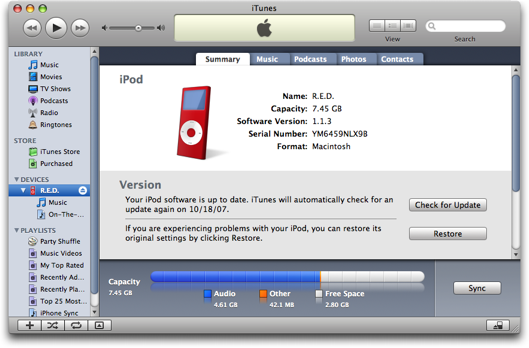
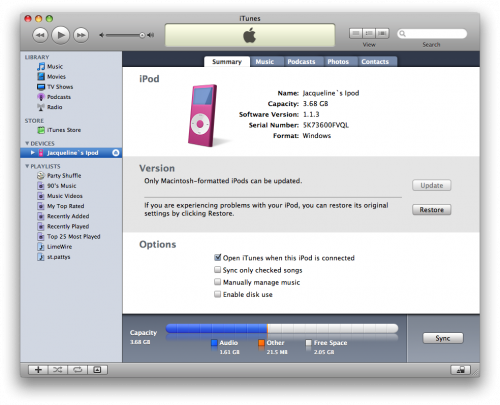
The way you see if an iPod is Mac or Windows-ready is to go to Settings --> About and scroll to the bottom of the screen. If it's formatted for Mac OS X, then the last item will be the serial number of the iPod. If it's Windows-ready, then after the serial number will be "Format: Windows". Simple enough, if a bit obscure.
If you wish to keep the songs you have on the iPod, you must first follow this tutorial to backup your iPod files to your computer.

Part 1, How to reformat Windows Formatted iPod for Mac
Step 1 Launch iTunes by selecting its icon in the dock
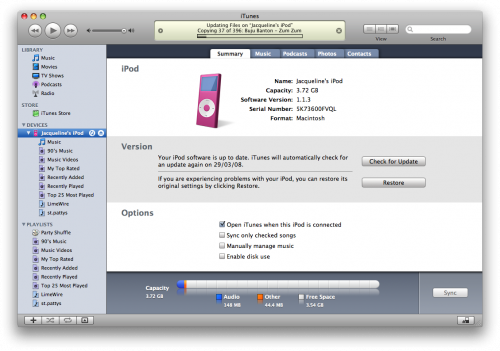
Step 2 Connect your iPod to the computer. Once it shows up in iTunes press the Restore button under the Summary Tab.

reformat windows formatted iPod

Step 3 A popup will appear warning you that all the songs on your iPod will be erased. Click the Restore button.
Step 4 An iPod Software Update window will open. Click the Next button.
Step 5 Click the Agree button to accept the license agreement.
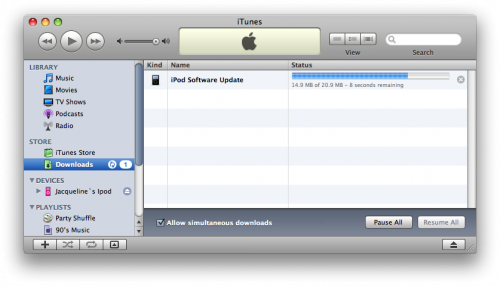
Step 6 iTunes will now go and download the latest firmware for your iPod.

reformat windows formatted iPod

Step 7 Once installation begins it will ask you for an Administrator's username and password. Enter this information then click the OK button.
Step 8 iTunes will then format and update your iPod after which it will reboot.
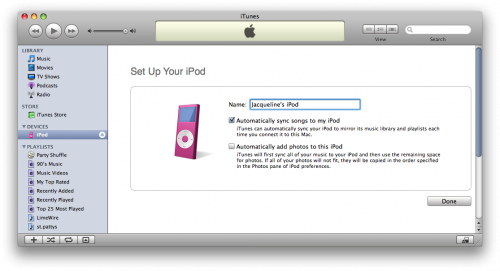
Step 9 Once complete you will be asked to name your iPod. Do this then press the Done button.

reformat windows formatted iPod

Step 10 iTunes will now automatically begin syncing your library to the iPod!

reformat windows formatted iPod

Part2. How to reformat Mac Formatted iPod for Windows
Step 1, Download the latest version of iTunes
Your first step should be to ensure that you have the very latest version of iTunes. You can do that by going to Download iTunes. Install that, and when you hook up your iPod, you should see it show up in iTunes, then when you click on the iPod on the left side of iTunes, you'll get to the summary screen.

iTunes

Step2 , Click the "Restore" button and you should be prompted to choose between four different options:
Restore Option 1: Restore - Restores with same iPod Software version already on iPod.
Restore Option 2: Use Same Version - Restores with same iPod Software version already on iPod even though a newer version is available.
Restore Option 3: Use Newest Version - Restores with the latest iPod Software available.
Restore Option 4: Restore and Update - Restores with the latest iPod Software available.

2010年6月7日星期一

How to convert video to mobile phone

This document will show you how to trim, crop, convert video to AVI/3GP/MP4 for mobile devices at length, you can refer to it step by step and take the conversion an easy trip.

This Mobile Phone Video Converter includes the following three parts:
1. How to convert video to AVI/3GP/MP4 for mobile phone?
2. How to trim, crop, join and edit video for Mobile Phone?

Part 1: How to convert video to Mobile Phone?
Step1. Please download Aiseesoft Mobile Phone Video Converter; you can free download it from here.
http://www.aiseesoft.com/mobile-phone-video-converter.html

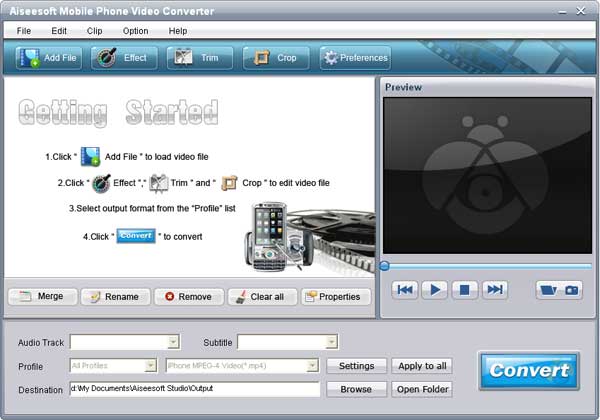
Step2. Install and run Aiseesoft Mobile Phone Video Converter, click the “Add File” button to import your videos. If you experience any problems adding videos by directly clicking the “Add” button, you can click “File -> Add file” to add the video files you want to convert from your computer.

Mobile Phone Video Converter - add file

Step3. Then Click the “Format” drop-down list to select the format you prefer for each added file. If you don’t know what formats your device support, you can just select the format “Sony PSP (*.mp4)”

Mobile Phone Video Converter - profile

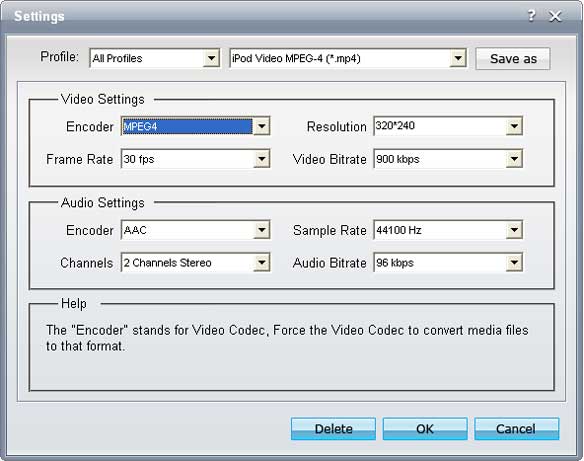
If you want to customize the output quality, click the “Settings” button to open the Settings panel, where you customize resolution, frame rate, video bit rate, audio bit rate, sample, etc.

Mobile  Phone Video Converter - settings

Free Trial: Free download Aiseesoft Mobile Phone Video Converter

Next Part: How to crop, join and trim movie for Mobile Phone?

2010年6月6日星期日

How to Convert MOV to MP3

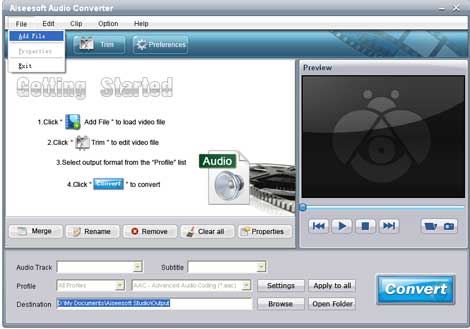
In this guide we will explain how to convert MOV to MP3 with Aiseesoft Audio Converter, which helps you extract audio from video files or convert between almost any audio formats with great quality and fast speed.

Before doing this conversion, you need to download trial version or order full version of Aiseesoft Audio Converter and run it on your computer.

How  to convert MOV to MP3

The following will show you a step by step guide to complete MOV to MP3 conversion.

1, Load the MOV file you'd like to convert

Click "Add File" button on tool bar to open the dialog, and browse your computer to choose the file you want to convert.

2, Set the output format

Click the Profile dropdown menu, select output format – MP3 for your portable player

And in settings panel, you can set video/audio parameters yourself.

3, Choose destination

Under Destination, browse to find a suitable place to save your converted files. The default folder is good too.

4, Click "Start" to convert

Click "Start" button to begin MOV to MP3 converting. After a few minutes, it is OK.

See? It's only 1-2-3-4 intuitive step to finish the MOV to MP3 conversion.

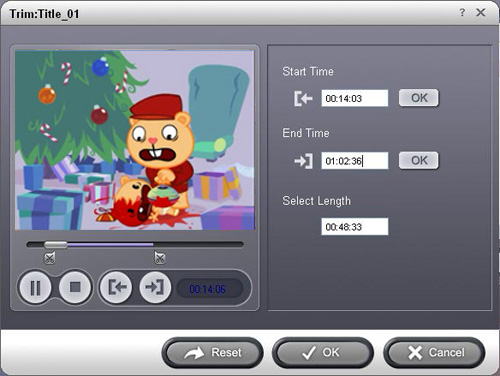
Note: If you want to convert some part of audio from the MOV file, drag the slide bar directly in Trim edit window. Other details at How to convert MOV to MP3

2010年6月4日星期五

For Panasonic, It’s Not Easy Being Green

In its drive to reshape itself around the so-called green technology theme, Panasonic is caught in a tough balancing act.

The Japanese electronics giant is trying to shift more resources into environment-related businesses such as rechargeable batteries and solar panels. Yet nearly half of its revenue still comes from the audiovisual segment, consisting mainly of televisions. Also complicating the situation is the fact that its TVs aren’t making money.

Pressured by competition from South Korean rivals in traditional gadgets and appliances, Panasonic late last year acquired smaller Japanese electronics maker Sanyo Electric.

Read the rest of this post on the original site

2010年6月2日星期三

Silicon Valley Rebound Pressures Tech Hiring

The pickup in tech hiring is spreading beyond Silicon Valley, forcing companies outside the big tech center to rethink their recruiting tactics.

Companies in second-tier tech locations such as Austin, Texas, and Raleigh, N.C., had an easier time recruiting talented employees during the slump. But now that Silicon Valley firms have started aggressively hiring, and the general economy is improving, competition is stiffening.

“We’ve always had a bit of a competition for talent with Silicon Valley,” says Julie Huls, president of the Austin Technology Council, a trade group of Austin-area technology executives. “As firms over there start to recover, we have to make sure we stay in the game.”

Convio Inc., a 370-employee Austin-based maker of fundraising software, continued adding employees during the recession, hiring about 35 people last year. “We were able to recruit incredible people that we couldn’t have gotten before the recession,” says Angie McDermott, vice president of human resources.

Read the rest of this post on the original site

2010年6月1日星期二

Facebook’s “Like” Button Makes Me Lonely

As a researcher, I expect myself to make mistakes all the time. It’s sort of par for the course, and a great way to learn. You build little tests to try out social designs, learn, and move on.

Read the rest of this post on the original site